These workspace settings shape day-to-day work in every team: how items are sized, how long finished items stay in view, and how meetings are tagged.
Estimates
Who can do thisManage estimates (Owners and Admins by default)
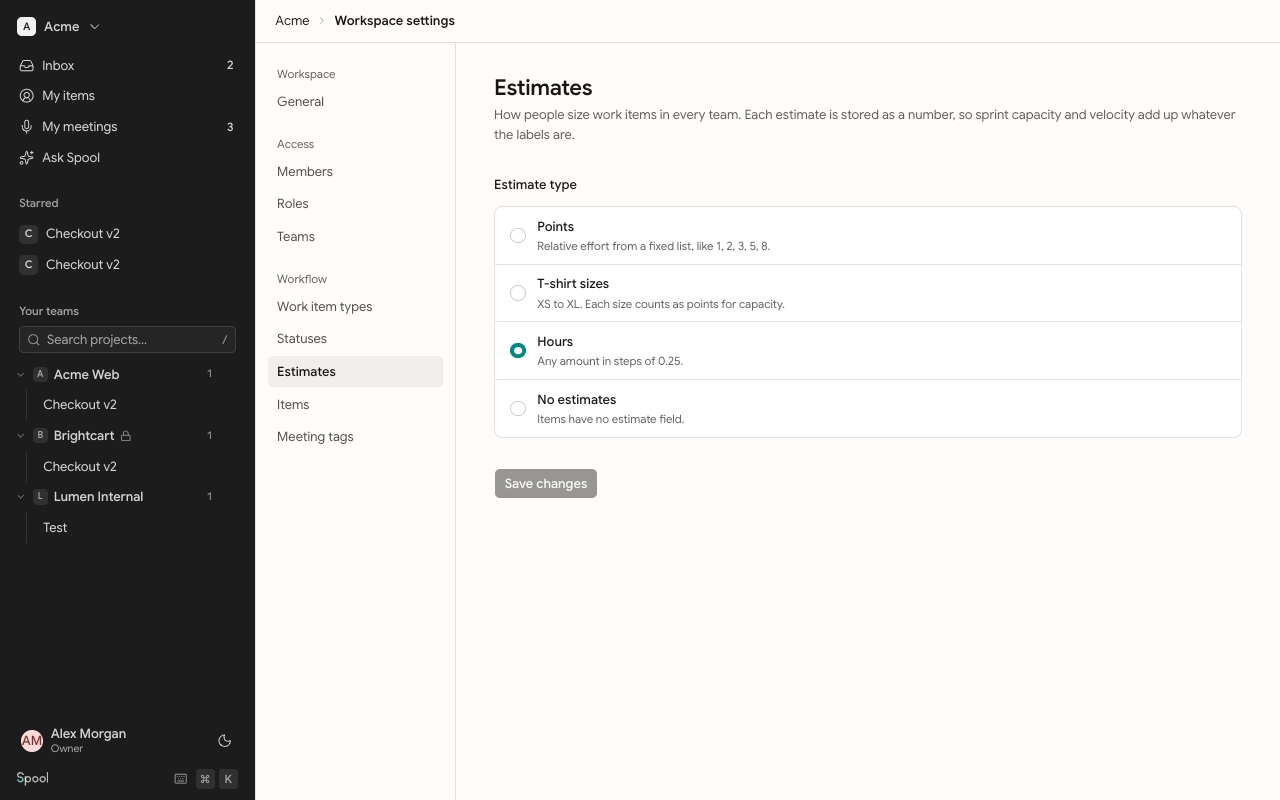
The estimate scale decides what people pick in an item’s estimate field. Every estimate is stored as a number, so sprint capacity and velocity add up whatever the labels are.
| Estimate type | How it works |
|---|---|
| Points | Relative effort from a fixed list, like 1, 2, 3, 5, 8. This is the default, with Fibonacci values. |
| T-shirt sizes | XS to XL. Each size counts as a number of points for capacity. |
| Hours | Any amount in steps of 0.25. |
| No estimates | Items have no estimate field. |
Epics are never estimated, whichever type you choose.
Change the scale
- Open Workspace settings and go to Estimates.
- Under Estimate type, pick a type.
- For Points or T-shirt sizes, edit the list under Point values or Sizes. Click Use a preset to start from Fibonacci (1, 2, 3, 5, 8, 13), Linear (1, 2, 3, 4, 5), Exponential (1, 2, 4, 8, 16) or T-shirt (XS, S, M, L, XL). Click Add option for more.
- Click Save changes.
For T-shirt sizes, each option has a label (like “M”) and the number of points it counts as. Each label and each value must be different. You can have up to 20 options, with values above 0 and up to 1000.
Hide completed items
Who can do thisEdit workspace settings (Owners and Admins by default)
Finished work piles up. To keep lists and boards focused, Spool hides items in Done and Canceled after a while.
- Open Workspace settings and go to Items.
- Under Hide completed items after, choose 1 week, 2 weeks, 3 weeks, 1 month or Never hide. The default is 2 weeks.
The setting saves as soon as you pick. It applies to every team. Hidden items aren’t gone: sprints, search and links still show them, and a list with hidden items shows how many at the bottom, with a Show button to bring them back.
Meeting tags
Who can do thisEdit meeting tags (Owners and Admins by default)
Tags help you sort and find meetings. When Spool writes a meeting’s summary, it picks tags from this list based on the title and what was said. Anyone can change the tags on a meeting afterwards.
New workspaces start with Standup, Planning, Design review, Client call, Retro, 1:1 and Interview.
- Open Workspace settings and go to Meeting tags.
- To add a tag, type a name in Add a tag, like “Demo”. It gets the next tag shade automatically.
- To rename a tag, click its name and edit it in place.
- To change a tag’s shade, click its dot and pick another.
To delete a tag, click its delete button and confirm. Meetings with that tag lose it, and Spool stops suggesting it. Tag names must be unique.