A role is a set of permissions. Everyone has one workspace role, which decides what they can do across the workspace, and one team role in each team they belong to, which decides what they can do in that team.
Who can do thisCreate and edit roles (Owners and Admins by default)
Workspace roles
| Role | What it’s for | Can you change it? |
|---|---|---|
| Owner | Everything, including the owner-only permissions. | No, it’s locked |
| Admin | Runs the workspace: people, roles, teams and settings. | Yes |
| Member | Sees the member directory and can join open teams. | Yes |
| Guest | Vendors and clients. Sees only the teams they’re added to. | No, it’s locked |
Owners and Admins act in every team with all team permissions, even teams they haven’t joined. Everyone else only works in their own teams, with their team role.
Team roles
Team roles mean the same thing in every team, so you define them once for the workspace.
| Role | What it’s for |
|---|---|
| Lead | Runs the team: every team permission, including people, settings and statuses. |
| Member | Does the work: items, meetings, docs, artifacts, projects and sprints. New team members get this role by default. |
| Viewer | Reads everything in the team and comments on items, docs and files. |
You can edit the default team roles’ permissions, but not delete them.
Create a custom role
- Open Workspace settings and go to Roles.
- Choose Workspace roles or Team roles, then click Create role.
- Enter a Name, like “Delivery manager” or “QA reviewer”, and a one-line Description.
- Under Start from, pick a role to copy permissions from.
- Click Create role. Then switch permissions on or off and click Save changes.
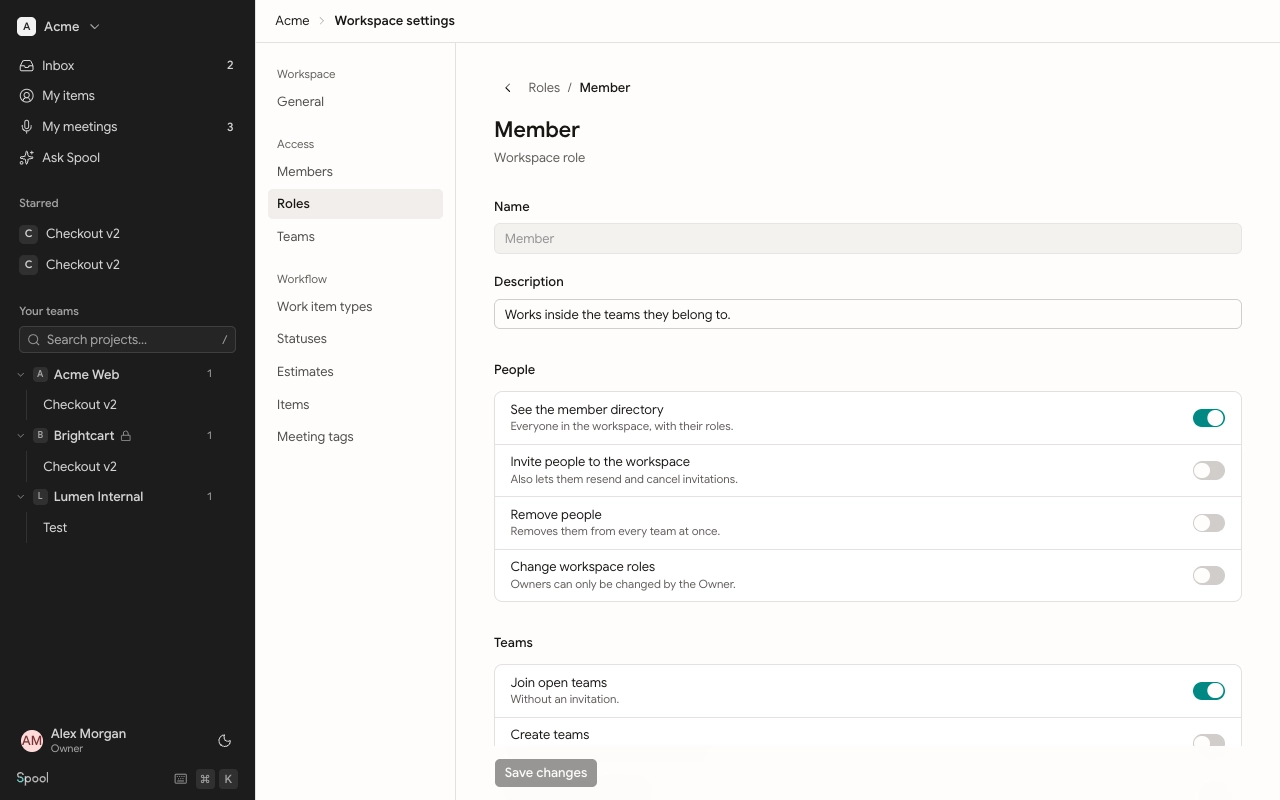
Custom roles show a Custom label in the list. You can rename them; default roles keep their names.
Delete a custom role
Open the role and click Delete role. Pick a role under Move people to, then click Delete and move people. Everyone on the deleted role, and any pending invitation using it, moves to the role you picked.
Rules that keep roles safe
- You can’t grant a permission you don’t hold yourself. Those switches are locked in the editor.
- Owner-only permissions can never be put on another role.
- You can’t edit the role you hold. Ask an Owner.
- The Owner and Guest roles can’t be changed.
Workspace permissions
| Permission | What it allows | Default roles |
|---|---|---|
| See the member directory | See everyone in the workspace, with their roles. | Owner, Admin, Member |
| Invite people to the workspace | Also resend and cancel invitations. | Owner, Admin |
| Remove people | Removes them from every team at once. | Owner, Admin |
| Change workspace roles | Owners can only be changed by an Owner. | Owner, Admin |
| Join open teams | Join without an invitation. | Owner, Admin, Member |
| Create teams | The creator becomes the team’s Lead. | Owner, Admin |
| Edit any team’s settings | Name, key, visibility, statuses, members, archiving. | Owner, Admin |
| Archive and delete teams | Owner, Admin | |
| See private teams | Without being a member of them. | Owner, Admin |
| Edit workspace settings | Name and URL, and item settings. | Owner, Admin |
| Create and edit roles | Only permissions you hold can be granted. | Owner, Admin |
| Edit work item types | Owner, Admin | |
| Edit workspace statuses | Copied into every team. | Owner, Admin |
| Edit meeting tags | Owner, Admin | |
| Manage estimates | Choose how work items are estimated. | Owner, Admin |
| View the audit log | Owner, Admin | |
| Manage billing, Transfer ownership, Delete the workspace | Owner only. | Owner |
Team permissions
| Permission | Default team roles |
|---|---|
| Create items; Edit and move items; Delete items | Lead, Member |
| Comment (on items) | Lead, Member, Viewer |
| File meetings; Edit and move meetings; Delete meetings | Lead, Member |
| Create docs; Edit and publish docs | Lead, Member |
| Delete docs (also deletes others’ comments on docs) | Lead |
| Comment on docs | Lead, Member, Viewer |
| Share docs outside the team | Lead |
| Add artifacts; Rename and move artifacts | Lead, Member |
| Delete artifacts (also deletes others’ comments on files) | Lead |
| Comment on files | Lead, Member, Viewer |
| Share artifacts outside the team | Lead |
| Create projects; Archive projects | Lead, Member |
| Delete projects | Lead |
| Create and manage sprints | Lead, Member |
| Add workspace members to the team; Remove people from the team; Invite people from outside; Assign team roles | Lead |
| Edit team settings (name, key and visibility); Add team statuses | Lead |
Coding agents you connect use exactly these permissions: they can only do what your roles allow.