If you already have a recording from another tool, upload it and Spool treats it like any other meeting. It writes the transcript and notes, and the meeting shows up in My meetings.
Supported files
| What | Limit |
|---|---|
| Formats | MP4, M4A, MP3, WAV or WebM |
| Size | Up to 2 GB per file |
| Content | Audio or video. Spool needs speech in it to write notes. |
One file makes one meeting. Each recording can only be used for one meeting.
Upload a file
- Open My meetings in the sidebar, or open a project and go to its Meetings tab.
- Click Add meeting, then Upload a recording.
- Drop the file on the box, or click it to pick one.
- Optionally fill in the details:
- Title: leave it empty and Spool names the meeting from what was said.
- Date and time: when the call happened. It defaults to now.
- Project: click Choose project to file it straight away. If you started from a project’s Meetings tab, that project is already picked.
- Tags: pick any tags that fit. Leave them empty and Spool suggests some.
- Click Upload.
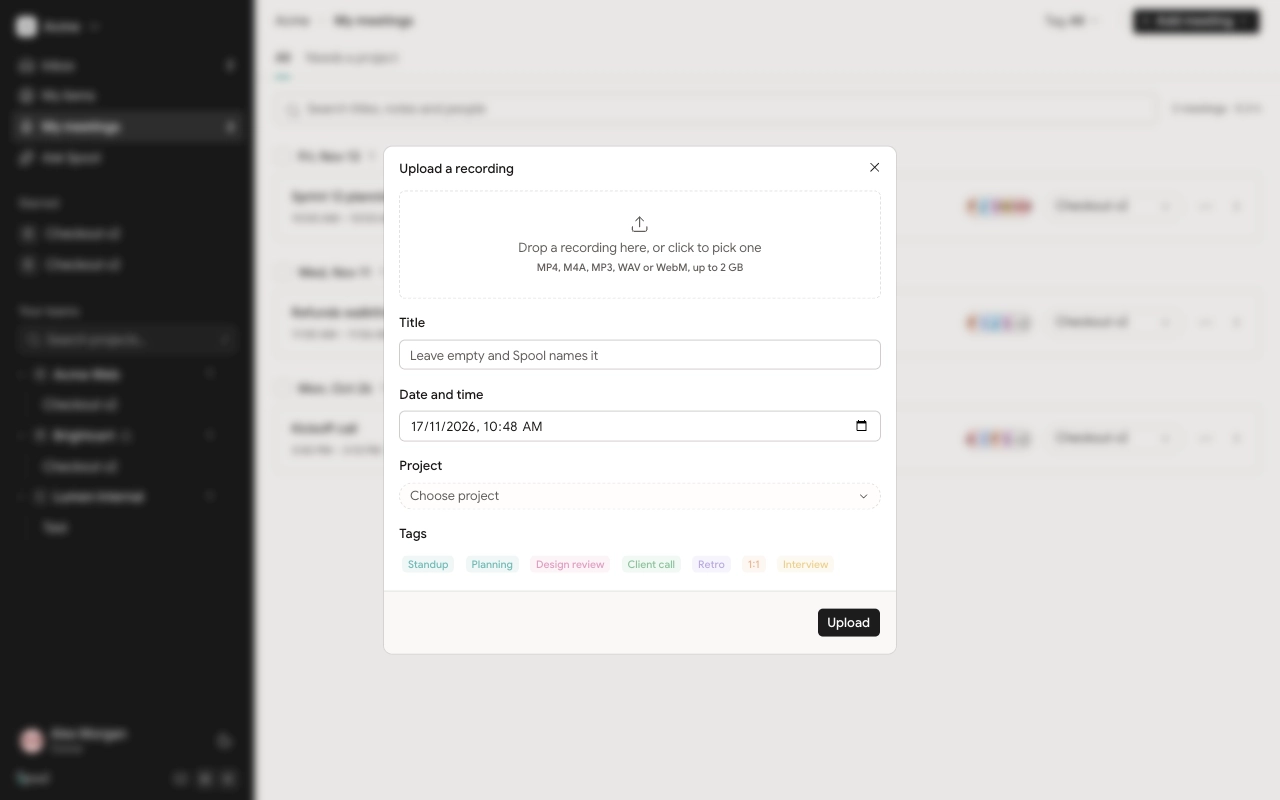
A progress bar shows while the file uploads. Keep the dialog open until it finishes; you can click Cancel upload to stop. When it’s done you’ll see “Recording uploaded. Spool is writing the notes.” and the meeting appears in the list marked Writing notes.
Choosing a project
If you don’t pick a project, the meeting goes into Needs a project in My meetings. Only you can see it there. You can file it later from the list or the meeting page.
To file a meeting into a project, you need the File meetings permission in that project’s team. Members and Leads have it by default. See Access, projects and tags.
If the upload fails
If something goes wrong, the dialog shows the error and the button changes to Try again. If the file was too big or the wrong type, you’ll see “Recordings can be at most 2 GB.” or “Upload an MP4, M4A, MP3, WAV or WebM file.” Convert or trim the file and pick it again.