After a recording reaches Spool, Spool transcribes it and then writes notes from the transcript. This page explains what you get on the meeting page and how to work with it.
While Spool works
A new meeting is marked Writing notes in the list. Spool first transcribes the recording, then writes the notes from the transcript. This usually takes a few minutes, and you can leave the page while it happens.
When the notes are ready, the person who added the meeting gets a notification in their inbox and by email. You can turn either off under Meeting notes in your notification settings.
The notes
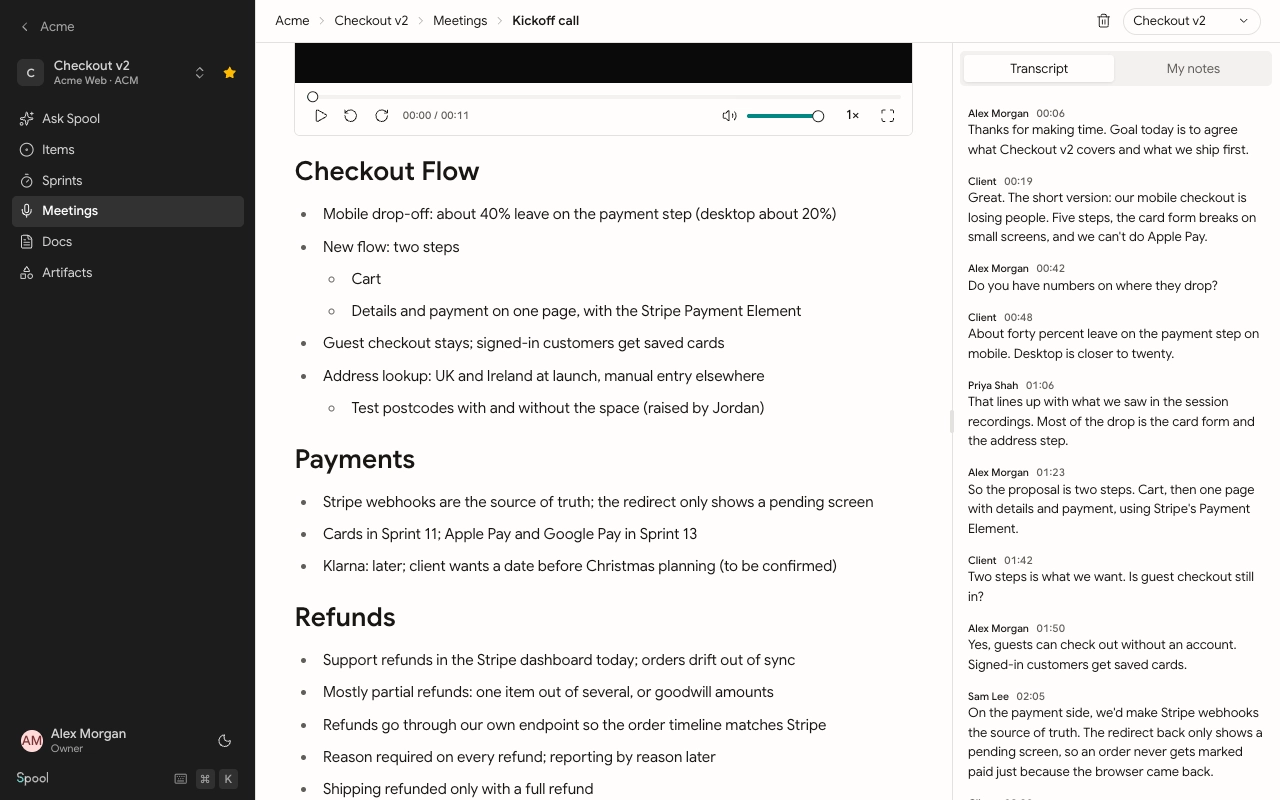
The notes are written so someone who missed the call can read them in two minutes and know what was discussed, what was decided and who does what next.
- They’re grouped by topic, with a heading for each one.
- They keep decisions and the reasons given, plus names, numbers, dates and deadlines as they were said.
- Open questions, risks and blockers are marked where they come up.
- When anyone agreed to do something, the notes end with Next Steps: one line per action, with the owner when one was named.
Everything comes from the transcript. Spool doesn’t add facts that weren’t said.
Spool also gives the meeting a short title if you didn’t set one, and picks tags from your workspace’s list if the meeting has none.
Regenerate the notes
If the notes miss the mark, for example after you’ve fixed speaker names, click Regenerate summary under them. Spool writes them again from the current transcript. Your title and tags stay as they are.
The recording and transcript
The recording plays at the top of the page. The transcript is in the side panel on the right, under Transcript. Each line shows the speaker and the time.
- Click a line to jump the recording to that moment.
- As the recording plays, the current line is highlighted.
Rename a speaker
Spool may label people as “Speaker 1”, “Speaker 2” and so on. If you can edit the meeting, click the speaker’s name on any transcript line and type the new one. It changes on every line for that speaker.
Player shortcuts
On a meeting page:
| Keys | Action |
|---|---|
| Space or K | Play or pause |
| ← | Back 10 seconds |
| → | Forward 10 seconds |
| M | Mute |
| F | Full screen |
My notes
The My notes tab in the side panel is a private notepad for this meeting. Only you can see what you write, even when the meeting is shared with your team. It saves as you type. Notes you typed in the Chrome extension during the call appear here too.
If processing fails
Sometimes Spool can’t finish. The meeting is marked Failed and the page shows why, for example:
- “We couldn’t find any speech in this recording.”
- “We couldn’t transcribe this recording.”
- “We couldn’t write the summary.”
Click Retry to try again. Spool picks up from the step that failed, so a good transcript isn’t redone. The person who added the meeting also gets a notification when it fails.