Notification settings decide what reaches you and where. Each type of notification can go to your Inbox, your email, both or neither.
Open your settings
- Click your name at the bottom of the sidebar.
- Choose Notifications.
You can also get there from the Inbox: open the ⋯ menu in the header and choose Notification settings.
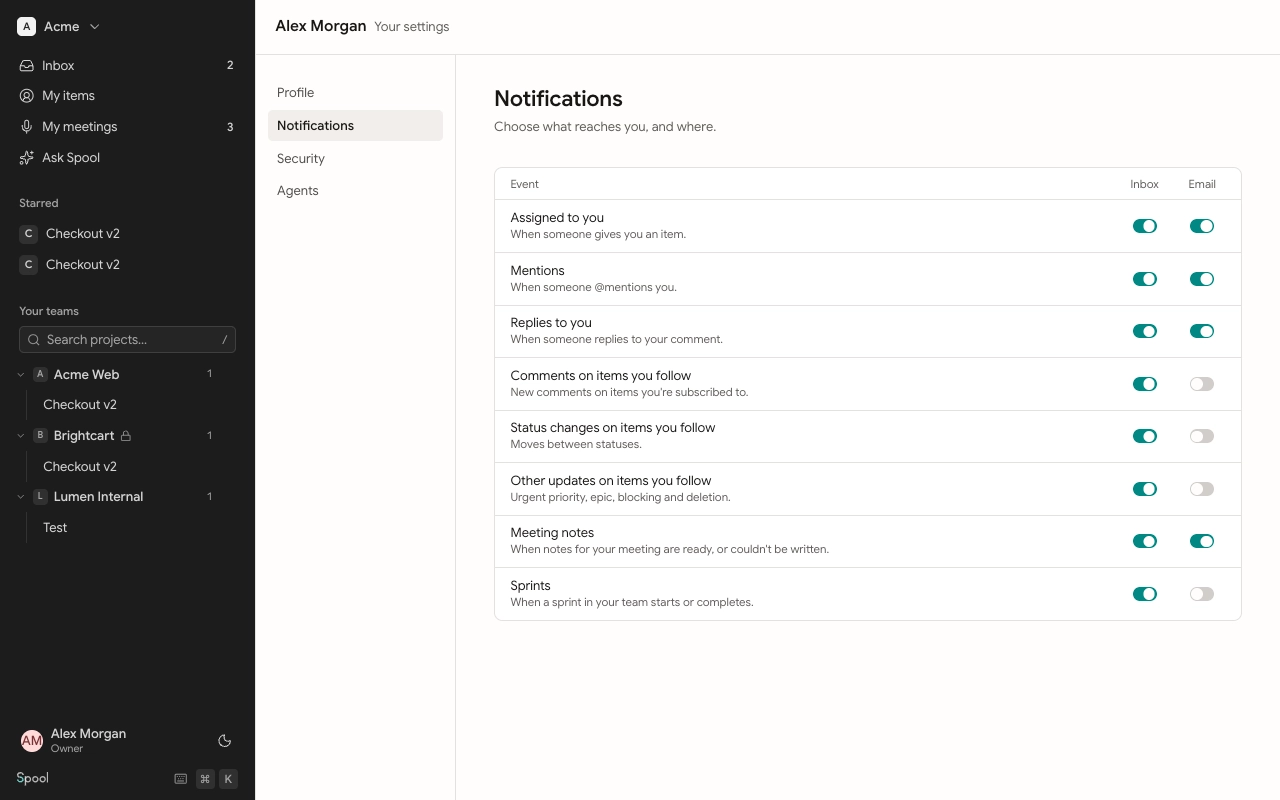
Choose what reaches you
The page lists every type of event with two switches, Inbox and Email. Changes save as soon as you flip a switch.
| Event | Inbox | |
|---|---|---|
| Assigned to you | on | on |
| Mentions | on | on |
| Replies to you | on | on |
| Comments on items you follow | on | off |
| Status changes on items you follow | on | off |
| Other updates on items you follow | on | off |
| Meeting notes | on | on |
| Sprints | on | off |
The table shows the defaults. Email starts on only for things addressed to you personally. Updates on items you follow stay in the Inbox unless you turn email on.
Your settings are yours alone, and they apply in every workspace you belong to.
How notification emails work
Spool doesn’t send an email the moment something happens. It waits a little and then sends one email with everything that’s pending:
- Urgent things wait 2 minutes: being assigned, mentions, replies, and an item you follow becoming Urgent.
- Everything else waits 10 minutes.
- When the first pending notification is due, all your pending notifications go out together, in one email per workspace.
- If you’ve already read or archived a notification in the Inbox, it’s left out of the email.
- Several status changes on one item collapse into the net change. If an item moves to In Review and back again, you get nothing.
- Edits to many items at once are folded into the same email.
So if you’re active in Spool, you’ll often see things in your Inbox first and get no email for them at all.
What isn’t notified
To keep noise down, Spool doesn’t notify for edits to an item’s title or description, estimate or type changes, reordering, priority changes other than Urgent, or moves between projects and teams.