Your account settings belong to you, not to a workspace. Your profile is how you appear to people in all your workspaces, and your security settings control how you sign in. Anyone can change their own account settings.
To open them, click your name at the bottom of the sidebar and choose Profile, Notifications, Security or Agents.
Profile
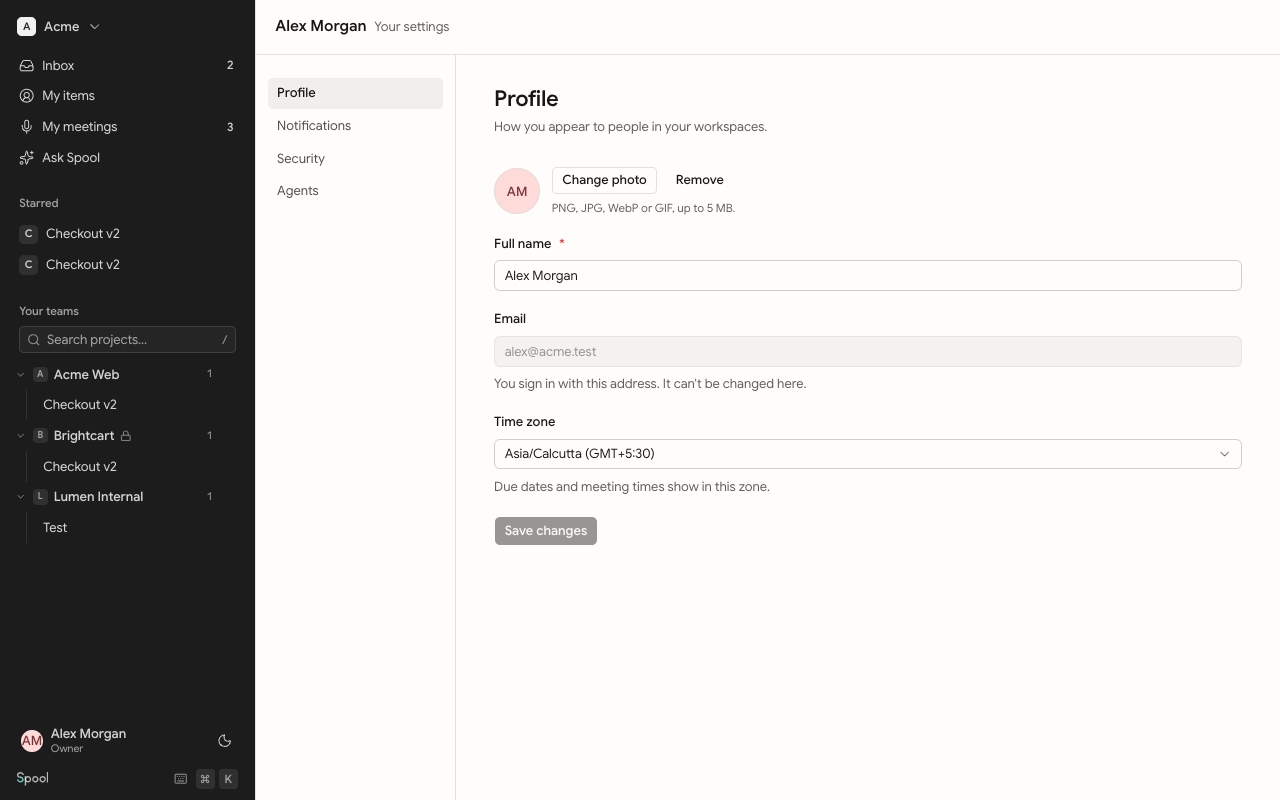
Add or change your photo
- Go to Profile.
- Click Upload photo, or Change photo if you already have one.
- Pick an image. PNG, JPG, WebP or GIF files up to 5 MB work.
The new photo saves straight away. Click Remove to go back to your initials.
Name, email and time zone
- Full name is how teammates see you in mentions, assignees and comments.
- Email is the address you sign in with. It can’t be changed here.
- Time zone decides how due dates and meeting times are shown to you. If your device is in a different zone, click Use this device’s zone to switch to it.
Click Save changes after editing your name or time zone.
Security
Sign-in methods
Spool has no passwords. You sign in with one of these:
- Email code: Spool emails you a 6-digit code, valid for 5 minutes. This is always on.
- Google: sign in with your Google account instead of waiting for a code.
On Security, click Connect next to Google to link your Google account. To unlink it, click Disconnect and confirm. You can still sign in with an email code, and you can connect Google again any time.
Where you’re signed in
Where you’re signed in lists every browser and device with an active session, showing the device, its IP address and when it was last active. The one you’re using is marked This device.
- Click Sign out on any other session to end it.
- Click Sign out everywhere else to end every session except this one. Those devices have to sign in again.
Connected agents
Security also lists the coding agents connected to your account. Signing out of browsers doesn’t disconnect them, so remove any you don’t use with Disconnect. See Connect an agent for how to set one up and manage it.