The Inbox collects your notifications from across the workspace: items assigned to you, mentions, replies, and updates on items you follow. It’s the first page you see when you open your workspace.
What lands in your Inbox
Each notification belongs to one type:
| Type | When you get it |
|---|---|
| Assigned to you | Someone gives you an item, or takes you off one. |
| Mentions | Someone @mentions you in an item, a comment or a doc. |
| Replies to you | Someone replies to or resolves your comment. |
| Comments | Someone comments on an item you follow. |
| Status changes | An item you follow moves to another status. |
| Other updates | An item you follow becomes Urgent, moves to another epic, changes what blocks it, or is deleted. |
| Meeting notes | The notes for a meeting you added are ready, or couldn’t be written. |
| Sprints | A sprint in your team starts or completes. |
You never get notified about your own actions. You can turn each type on or off in Notification settings.
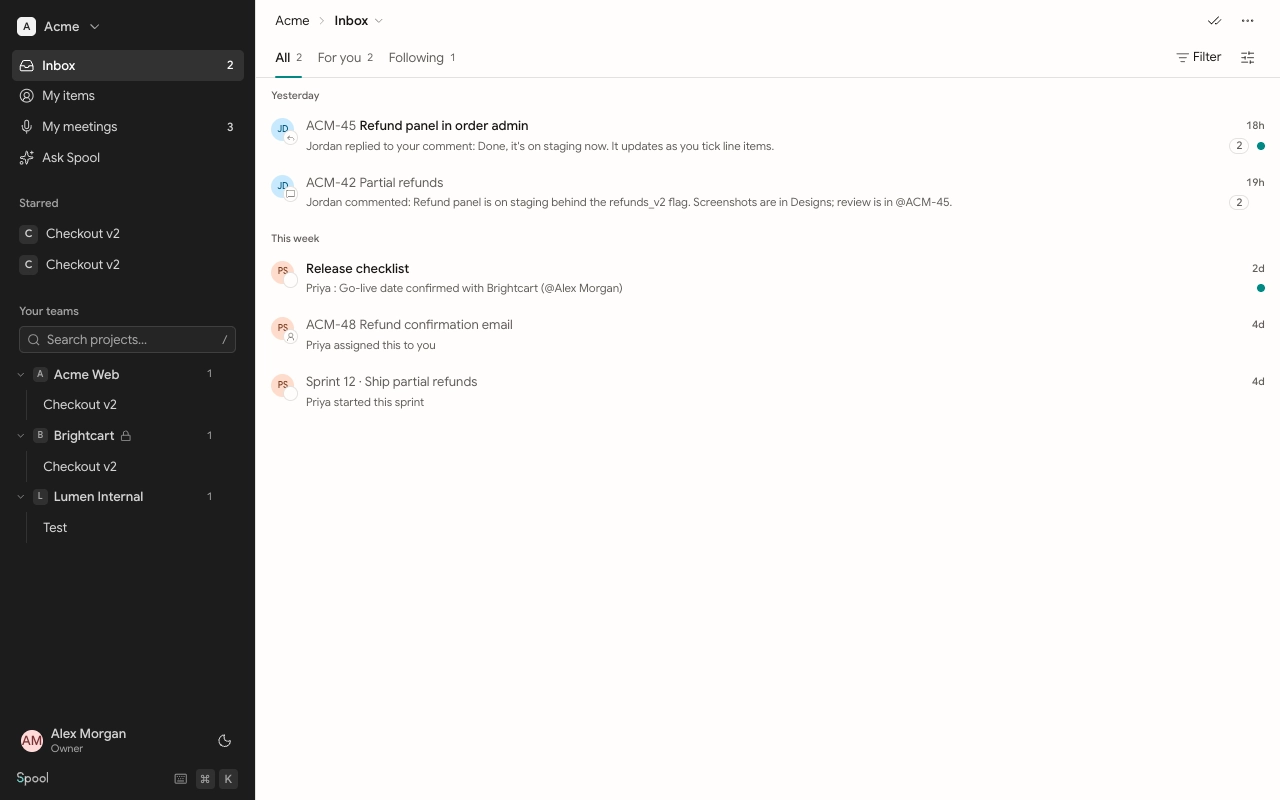
Tabs
- All: everything.
- For you: things addressed to you directly, such as assignments, mentions and replies.
- Following: updates on items you follow.
Each tab shows how many unread notifications it holds. The Inbox link in the sidebar shows the total.
Following items
You follow an item automatically when you create it, are assigned to it, request it, are mentioned in it or comment on it. To follow or stop following an item yourself, open it and click Subscribe or Unsubscribe in its side panel.
Unsubscribing only stops the Following updates. You still hear about anything addressed to you, such as a mention or an assignment.
Filter and display
Click Filter to show only some types, or only notifications From certain people. Active filters show as chips under the toolbar. Click Clear to remove them all.
Click the Display button (the sliders icon) to change how the list looks:
- Unread only: hide what you’ve read.
- One row per item: on by default. Shows the latest notification for each item with a count. Turn it off to see every notification on its own row.
- Order: Newest first groups rows under Today, Yesterday, This week and Older. Most important first puts the most important ones at the top.
Read, archive and move back
Opening a notification takes you to the right spot, such as the comment or the item’s activity. It also marks it read. Opening the item from anywhere else in Spool marks its notifications read too.
Reading never removes a row. To clear it, archive it:
- Hover a row and click the archive icon, or press E.
- To deal with several at once, press X on each row (or tick them), then use the bar that appears to Archive, Mark as read or Mark as unread.
- To clear everything, open the ⋯ menu in the header and choose Archive all read or Archive all.
The double-tick button in the header marks everything as read.
To see archived notifications, click Inbox in the page header and choose Archived. From there, Move to Inbox brings a row back. Read and archived notifications are removed after 90 days.