Artifacts are a project’s drive. Keep the files, folders and links a project depends on, such as contracts, designs, exports and repository links, right next to its items, meetings and docs.
What you can keep
An artifact is one of three things:
- Files you upload, up to 100 MB each.
- Folders to group files and links, nested as deep as you like.
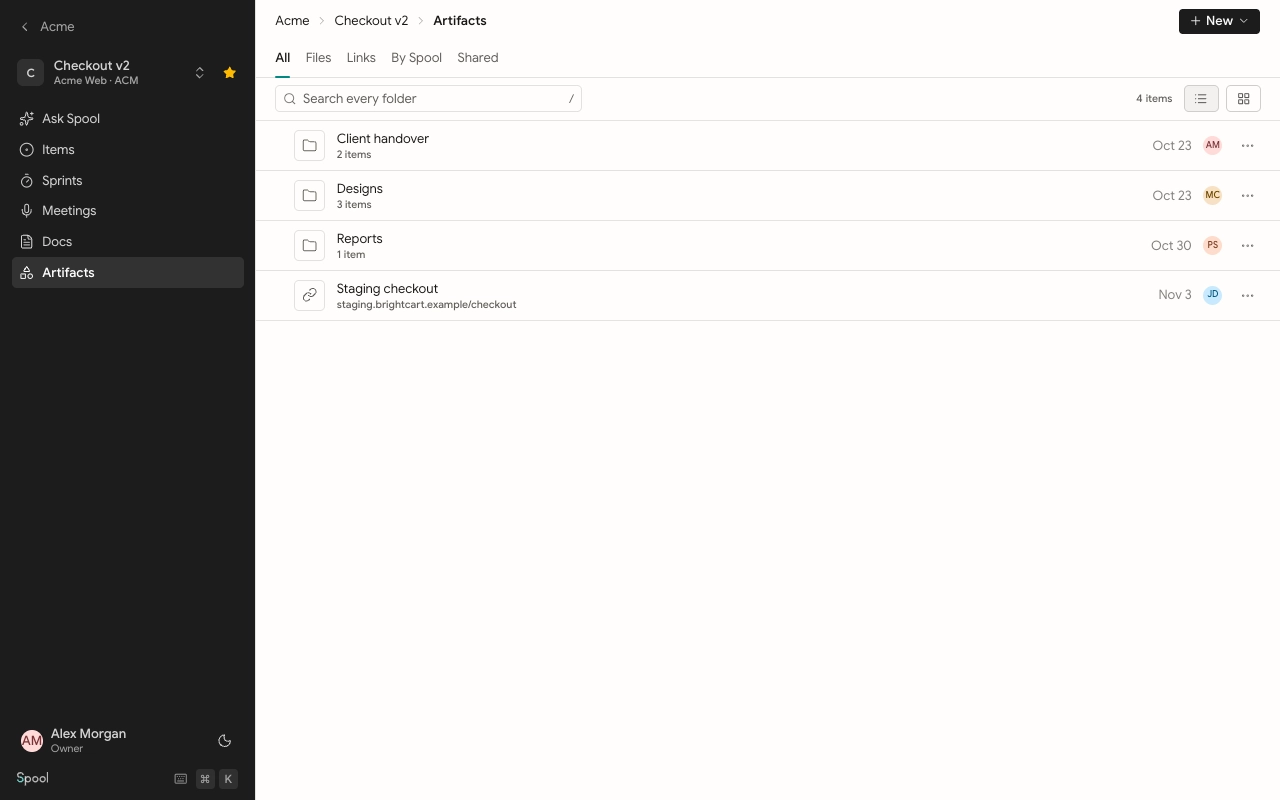
- Links to anything on the web, such as a repository, a design file or a dashboard. Each link shows the site’s own icon.
Open a project and pick the Artifacts tab to see them. Use the breadcrumbs at the top to move back up through folders.
Find things
- Filter tabs. All shows everything in the current folder. Files and Links narrow it to one kind. Shared lists everything shared outside the team, from every folder. By Spool lists what coding agents connected to Spool have added.
- Search every folder. Searching looks through the whole project, not just the folder you’re in. Results show where each one lives.
- List or grid. Switch between List view and Grid view with the buttons next to the search box.
Preview files
Click a file to preview it beside the list, without downloading it. Spool can show:
- PDFs, images, video and audio
- Word documents, Excel spreadsheets and PowerPoint slides
- CSV, Markdown, plain text and HTML
- Emails and zip archives
Other files show No preview for this file, with a way to download them. From the preview you can Download a file, Share it, or click Open in new tab to give it a full page of its own.
| Shortcut | Action |
|---|---|
| J or ↓ | Next file in the preview |
| K or ↑ | Previous file in the preview |
| ⌘ A | Select everything shown |
| Esc | Close the preview, then clear the selection |
Comments and links on files
Click Comments and links in the preview header to open a side panel with two tabs:
- Comments for feedback on the file. Anyone in the team can comment, including Viewers.
- Linked for the items, docs and meetings the file relates to. Add one with the link picker, or mention the file with
@in an item or doc and it shows here too.
For folders and links, pick Linked… from the row’s ⋯ menu to see the same list.
Who can do what
Everyone in the project’s team can browse, preview and download artifacts. The rest depends on their team role:
| Team role | Add | Rename and move | Delete | Comment on files | Share outside the team |
|---|---|---|---|---|---|
| Lead | Yes | Yes | Yes | Yes | Yes |
| Member | Yes | Yes | No | Yes | No |
| Viewer | No | No | No | Yes | No |
Workspace owners and admins can do everything in every team.
In this section
Files, folders and links
Upload, group in folders, add links, move, rename and delete.
Share artifacts
Invite people by email or turn on a public link for a file or folder.