A team is a group of people who work together, such as your mobile squad, a client engagement or a vendor. Each team keeps its own people, projects and statuses, and its key appears in every item it owns, like ACM-42.
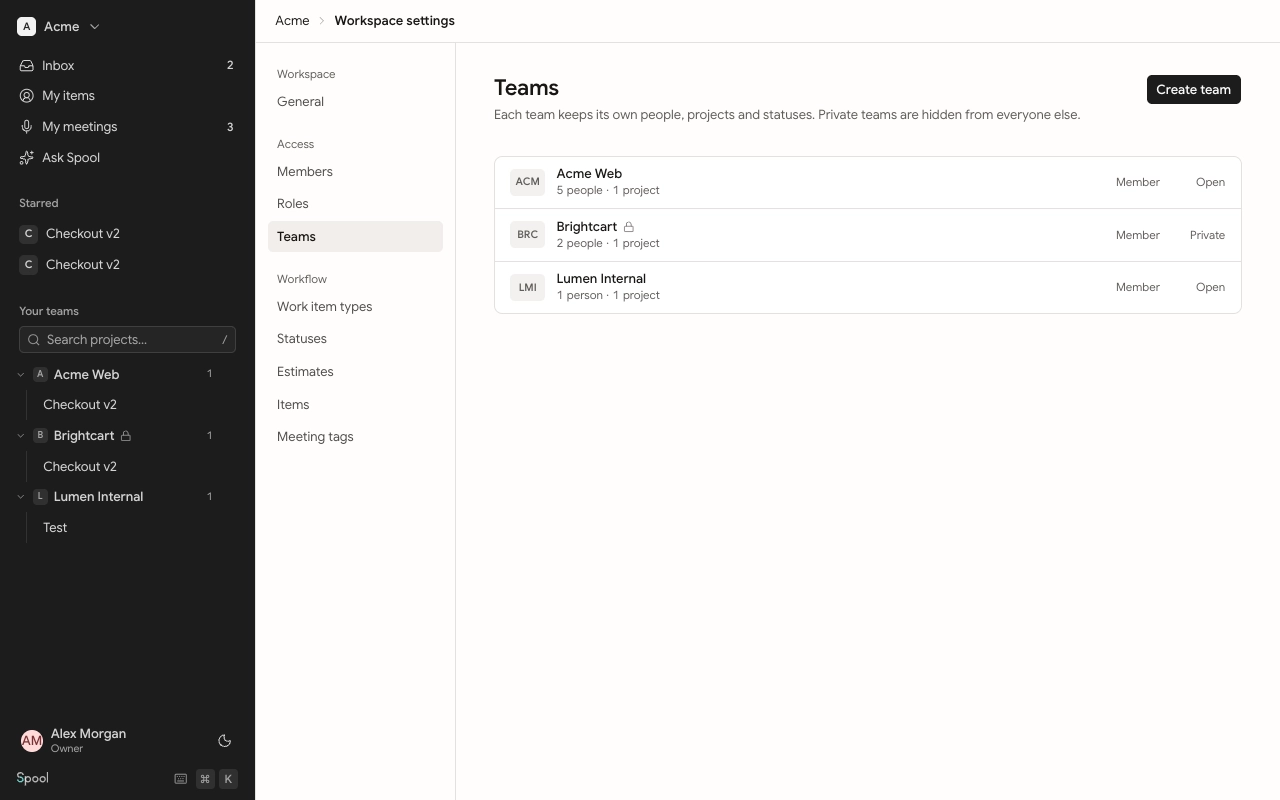
Open and private teams
- Open: everyone in the workspace can see the team and join it.
- Private: hidden from everyone except its members, workspace Owners and Admins, and anyone with the See private teams permission. Use this for each vendor or client so they never see each other’s work.
Guests only ever see the teams they’ve been added to, whatever the team’s visibility.
Create a team
Who can do thisCreate teams (Owners and Admins by default)
- Open Workspace settings and go to Teams.
- Click Create team.
- Enter a Name. Spool suggests a Key from it; change it if you like.
- Choose Who can see this team: open or private.
- Optionally add a Description, then click Create team.
You become the new team’s Lead.
The team key
The key is 2 to 5 letters or digits, starting with a letter, like ACM or WEB2. Every item in the team gets a key from it: ACM-1, ACM-2 and so on. You can change the key later in the team’s General settings. Items then use the new key, and their old keys still open them.
Join an open team
On Teams, click Join next to any open team you’re not in. You join with the team’s default role, which is Member unless your workspace changed it. You need the Join open teams permission, which Members have by default.
Team settings
Hover over a team in the sidebar and click the gear icon, or click the team on Teams. Team settings have four pages.
Who can do thisTeam Leads, plus workspace Owners and Admins
General
Change the team’s name, key, visibility and description, then click Save changes. Under Danger zone:
- Archive this team hides it from the sidebar and pickers and makes it read-only. Click Restore to bring it back. This needs the Edit any team’s settings workspace permission.
- Delete this team deletes its projects, statuses and memberships for good. You type the team’s name to confirm. This needs Archive and delete teams.
Members
Lists the people in the team and their team role.
- Add people: enter an email and pick a Team role. Someone already in the workspace is added straight away. A new address gets an invitation and joins the workspace as a Guest who only sees this team.
- Change a role: use the role menu on the person’s row.
- Remove from team: open the menu at the end of their row. They lose access to the team’s projects straight away but stay in the workspace.
Pending invitations show here too, with a Cancel button.
Statuses
A team uses all the workspace’s statuses and can add its own inside the same seven categories. Workspace statuses are marked Workspace and can’t be changed here. When you add a team status, give it a name and a short description of what happens in it. Agents read the description too. A status can only be deleted once no items use it.
Projects
Click New project to add one with a name and description. Everyone in the team can see it. Rename a project in place, or use its menu to Archive (it leaves the sidebar but keeps its work) or Delete (its items, sprints and docs are deleted for good). Archived projects are listed under Archived, where you can Restore them.