Status says where an item is, priority says how much it matters, and the estimate says how big it is. Together they drive your boards, sprints and burndown.
Statuses and categories
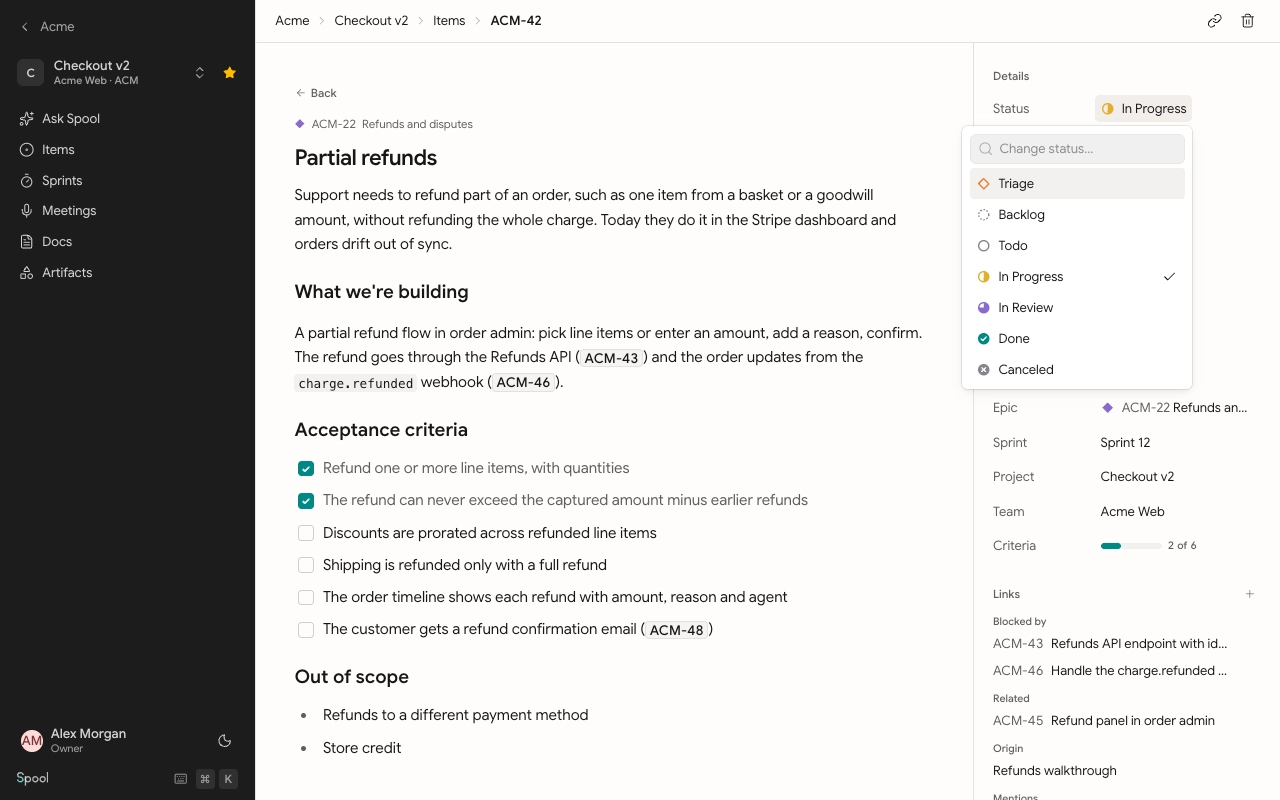
Every status belongs to one of seven fixed categories. The categories never change, so boards, sprints and connected agents behave the same in every team. Inside them, statuses can have any name.
| Default status | Category | Meaning |
|---|---|---|
| Triage | Triage | New, not yet accepted by a person |
| Backlog | Backlog | Accepted, not planned |
| Todo | Todo | Planned, not started |
| In Progress | In progress | Someone is working on it |
| In Review | In review | Waiting on a review or approval |
| Done | Done | Finished |
| Canceled | Canceled | Will not be done |
Workspace owners and admins edit the shared statuses in Settings under Statuses. They can rename them, add more to any category, and delete extras, but each category keeps at least one status. Team leads can add statuses for just their team in the team’s settings under Statuses.
Spool records when work starts and ends. Moving an item to an In progress or In review status marks it started, and moving it to Done or Canceled marks it closed. Moving it back to Triage, Backlog or Todo clears those times.
Triage
Triage is where work waits for someone to accept it, such as a request from a client or an idea from a call that nobody has agreed to yet. New items start in Backlog unless you pick another status, so choose a Triage status when you create an item that still needs a decision.
To accept an item, change its status to Backlog or Todo. Until then it can’t be planned into a sprint, and the sprint planning view shows how many items are still waiting in Triage.
Change the status
- On the item page: click the status under Details.
- From a list or board: focus or select items and press S.
- On the board: drag a card to another column.
- For several items: select them with X and use Status in the bar at the bottom.
Items in a sprint follow a few extra rules. An item added to a sprint from Backlog moves to Todo. An item in a planned or active sprint can’t go back to Triage or Backlog until you take it out of the sprint. Moving an item from a completed sprint back to Triage or Backlog takes it out of that sprint, and the sprint’s totals stay as they were.
Priority
Priority has five levels: Urgent, High, Medium, Low and No priority. Set it from the item page, with P in a list, or in bulk from the selection bar. Setting an item to Urgent notifies everyone subscribed to it. Lists can be ordered by priority.
Estimates
Estimates size the work so you can plan sprints against a capacity. Workspace owners and admins choose the scale in Settings under Estimates:
| Scale | Options |
|---|---|
| Points | Presets for Fibonacci (1, 2, 3, 5, 8, 13, the default), linear (1 to 5) or exponential (1, 2, 4, 8, 16), or your own values |
| T-shirt sizes | XS, S, M, L, XL by default, each counting as a number of points |
| Hours | Any number of hours, in quarter-hour steps |
| No estimates | Turns estimates off everywhere |
Set an estimate on the item page under Details, with E in a list, or in bulk from the selection bar. Epics aren’t estimated: their size is the work inside them.
Sprints add up the estimates of their items to show points planned and done, and count the items that aren’t estimated yet.