The Members page lists everyone in the workspace, including Guests from vendors and clients, and every invitation that hasn’t been accepted yet. It’s where you invite people, change roles and remove access.
Who can do thisSee the member directory to view the list. Invite people to the workspace, Change workspace roles and Remove people to manage it (Owners and Admins by default).
Find someone
Open Workspace settings and go to Members. Type in Search by name or email to filter the list. Pending invitations appear below the members, with when they were sent, or Invite expired once they run out.
Invite people
Spool is invite-only, so this is how new people join your workspace.
- On Members, click Invite people. You can also choose Invite people from the workspace menu at the top of the sidebar.
- Under Emails, type or paste one or more addresses. You can invite up to 20 people at a time.
- Pick a Workspace role. Member is selected by default.
- Under Add to teams, tick the teams they should join and pick a team role for each.
- Click Send invite.
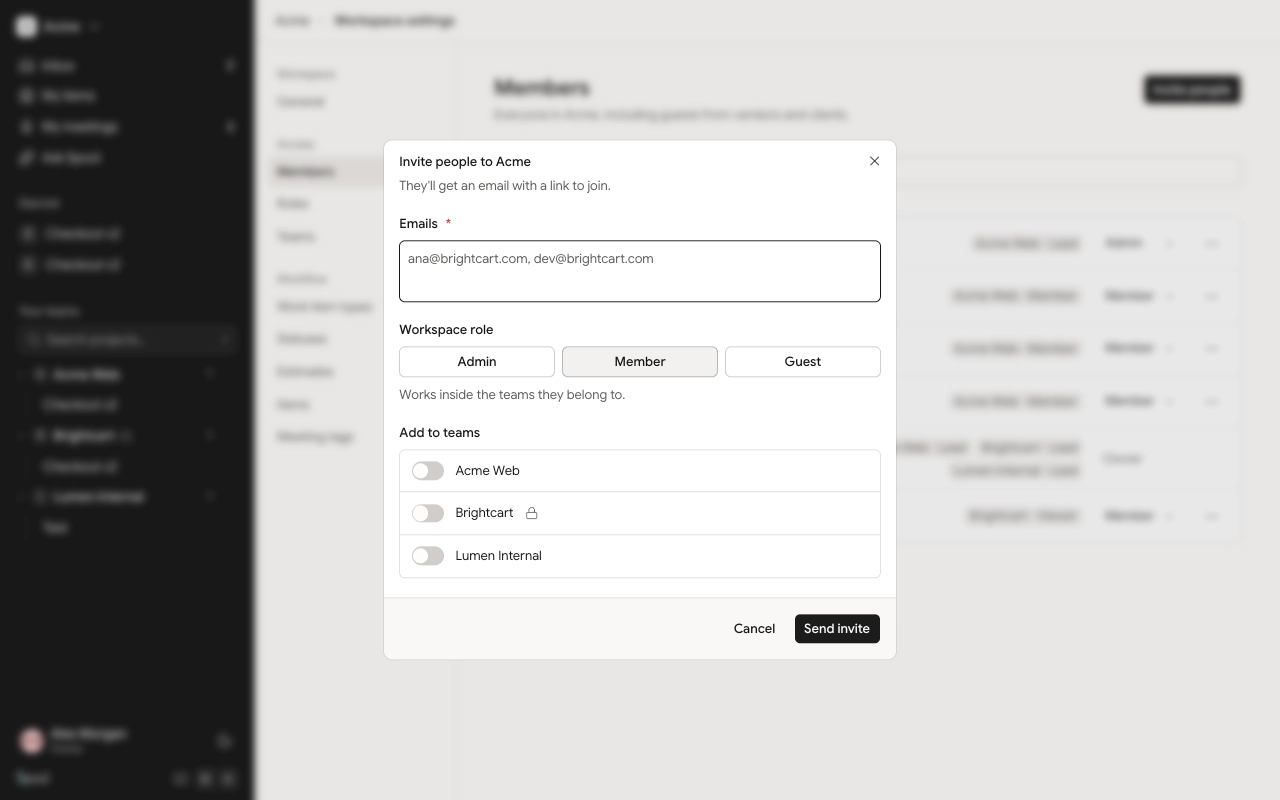
Each person gets an email with a link to join. If any address already belongs to a member or has a pending invitation, nothing is sent and Spool names that address. For a pending one, resend the existing invitation instead.
You can only give roles you’re allowed to give. Only an Owner can invite another Owner, and you can only pick a role if you hold every permission it has. The same applies to team roles.
Accept an invitation
The person you invited opens the link, signs in with the invited email address, and clicks Accept and open Acme (with your workspace’s name). They join with the workspace role you chose and are added to the teams you picked. They can also click Decline.
Invitations last 7 days.
Resend or cancel an invitation
Find the invitation on Members and click Resend to send the email again. Resending starts a fresh 7 days, which is how you revive an expired invitation. Click Cancel to withdraw it; the link stops working.
Change someone’s workspace role
- On Members, find the person.
- Open the role menu on their row and pick the new role.
The change takes effect straight away. A few rules keep this safe:
- You can’t change your own role.
- Only an Owner can change an Owner, or make someone an Owner.
- A workspace always keeps at least one Owner.
Remove someone
- On Members, open the menu at the end of their row (the three dots).
- Choose Remove from workspace and confirm.
They lose access to the workspace and every team in it straight away. Their work stays: items, comments and docs they wrote remain where they are.
Invite people from a team
Team Leads can also add people from the team’s own settings. Someone already in the workspace joins the team; a new email address is invited to the workspace as a Guest who only sees that team. See Teams.