A meeting starts out private to you. You choose when the team sees it by filing it into a project. This page covers who can see and change a meeting, filing, tags and bulk actions.
Who can do thisTeam roles with File meetings (Members and Leads by default) to file into a project. Workspace owners and admins, or a role with Edit meeting tags, to manage the tag list.
Who can see a meeting
| Where the meeting is | Who can see it |
|---|---|
| Needs a project (not filed) | Only the person who added it. Not even workspace owners or admins can see it. |
| Filed in a project | Everyone who can see that project’s team. In a private team, that’s only the team’s members, plus workspace owners and admins. |
My notes on a meeting are always private to their author, wherever the meeting is filed.
My meetings lists the meetings you added. A project’s Meetings tab lists every meeting filed in that project, whoever added it.
What each team role can do
On a filed meeting, what you can do depends on your role in the project’s team:
| Permission | What it allows | Lead | Member | Viewer |
|---|---|---|---|---|
| File meetings | Move your own meetings into this team’s projects | Yes | Yes | No |
| Edit and move meetings | Rename, retag, move to another project, retry, regenerate the summary, rename speakers | Yes | Yes | No |
| Delete meetings | Delete a meeting and its recording | Yes | Yes | No |
Workspace owners and admins can do all of this in every team. Anyone who can see a meeting can read it and keep their own My notes. On a meeting in Needs a project, the person who added it can do everything.
File a meeting into a project
- Find the meeting in My meetings. New ones are under Needs a project, which you can also open with the tab of the same name.
- Click Choose project on the meeting’s row, or on the meeting page next to the delete button.
- Pick a project.
The same button moves a filed meeting to another project. A filed meeting can move between projects but can’t go back to Needs a project. You can’t file into an archived project.
Tags
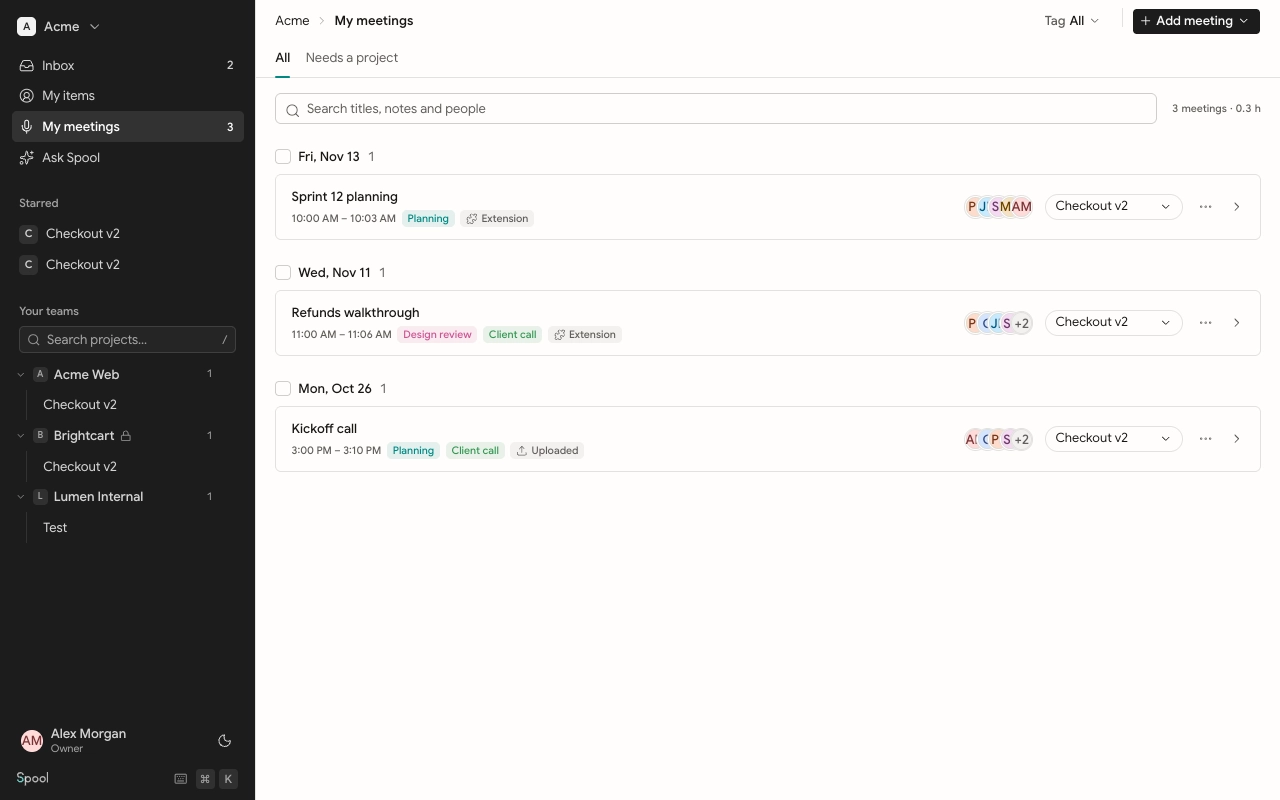
Tags help you group calls like standups, planning sessions or client calls. Filter a meetings list by tag with the Tag menu at the top.
- Add tags when you upload a recording, or use Change tags from a meeting’s row menu.
- If a meeting has no tags when its notes are written, Spool picks matching tags from your workspace’s list.
Manage the tag list
A new workspace comes with tags such as Standup, Planning, Design review, Client call, Retro, 1:1 and Interview. To change them, go to Settings and open Meeting tags. There you can rename a tag, change its colour, use Add a tag, or delete one. Deleting a tag removes it from every meeting and Spool stops suggesting it.
Bulk actions
Meetings lists are grouped by day, with Needs a project on top. Tick the checkbox next to a group’s heading to select every meeting in it. You can tick several groups. A bar appears with Move, Tag, Delete and Clear.
- Move files all selected meetings into one project.
- Tag replaces their tags.
- Delete removes them, with their recordings, transcripts and notes.
If you don’t have permission for some of them, Spool changes the rest and tells you how many it skipped.
In a meetings list, press J or ↓ for the next meeting, K or ↑ for the previous one, and Enter to open it.
Rename and delete
Use Rename from a meeting’s row menu, or click the title on the meeting page. To delete, use Delete in the row menu or the bin icon on the meeting page.