Docs are where a project’s requirements, technical designs and checklists live. Each doc sits inside a project, right next to the meetings, items and files it relates to.
How docs work
Every doc has two sides:
- The draft. This is what your team edits together. It saves on its own a couple of seconds after you stop typing, and again when you click away or leave the page. Only the team can see it.
- Published versions. When the draft is ready, you publish it as
v1, thenv2and so on. People outside the team only ever see the latest published version, never the draft.
This means you can keep working on the next version while a client reads the last one. The badge next to the title always tells you where you are:
| Badge | Meaning |
|---|---|
| Not published | Nothing has been published yet. Only the team can see the doc. |
| v2 | The draft matches the latest published version. |
| v2 · unpublished changes | The team has edited the draft since v2 went out. |
Who can see a doc
Everyone in the project’s team can open its docs. What they can do depends on their team role:
| Team role | Read | Comment | Create and edit | Delete | Share outside the team |
|---|---|---|---|---|---|
| Lead | Yes | Yes | Yes | Yes | Yes |
| Member | Yes | Yes | Yes | No | No |
| Viewer | Yes | Yes | No | No | No |
Workspace owners and admins can do everything in every team. A workspace admin can change what each team role is allowed to do.
Find and create docs
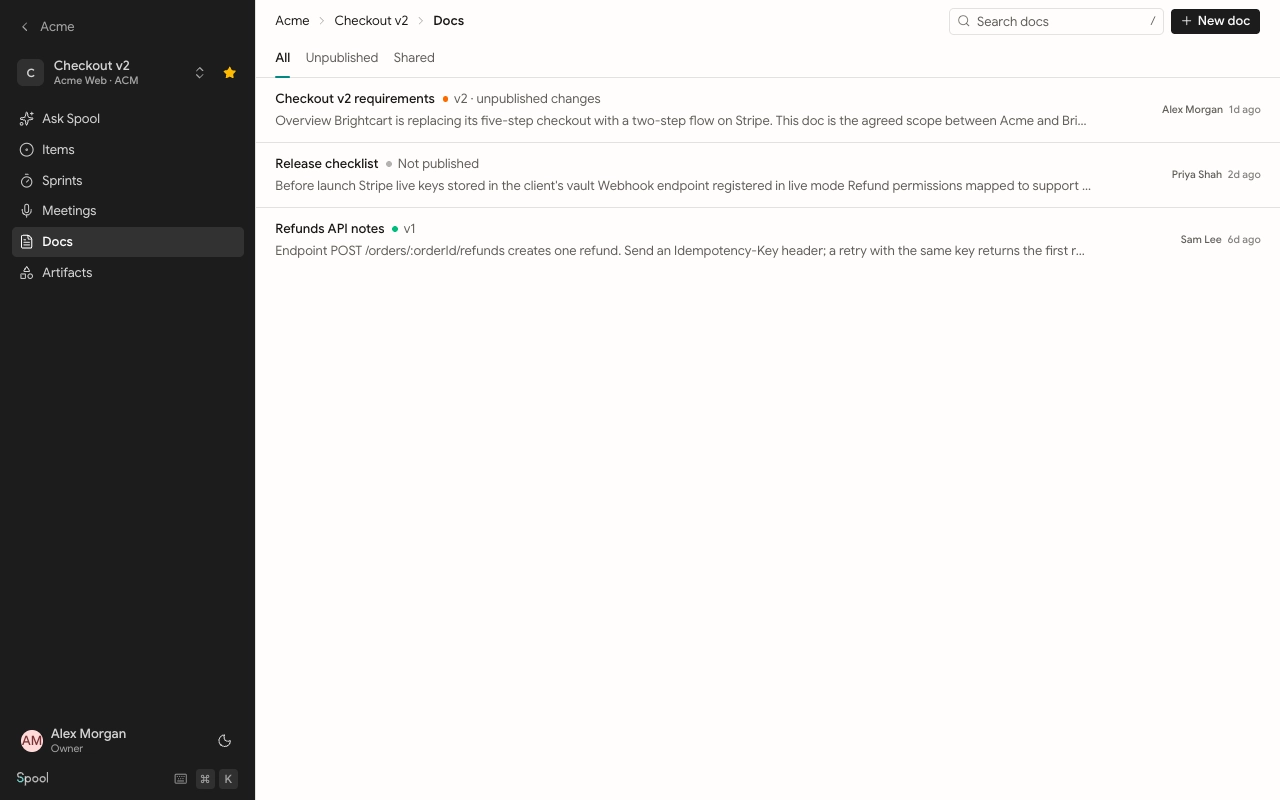
Open a project and pick the Docs tab. The list shows each doc’s title, a short excerpt, its state, who edited it last and whether it’s shared.
- Use the All, Unpublished and Shared tabs to narrow the list. Unpublished shows docs that were never published or have changes waiting. Shared shows docs shared with people by email or through a public link.
- Type in Search docs to find a doc by its text.
- Click New doc to start a blank doc called “Untitled”. Click the title to rename it.
The doc page
The doc page has the editor in the middle and an outline of your headings on the left on wide screens. Click a heading in the outline to jump to it. Under the title you’ll see who created the doc, who edited it last, and a word count with reading time.
The buttons at the top right open side panels:
- Comments shows open and resolved comment threads.
- History shows changes since the last publish, every published version and an activity log.
- Details shows what the doc links to, what mentions it, and who has access.
- Share invites people outside the team or turns on a public link.
- Publish saves the draft as the next version.
In this section
Write a doc
Blocks, formatting, mentions, images and links to other work.
Comments
Comment on a passage or the whole doc, reply and resolve.
Versions and publishing
Publish versions, review changes, undo and restore.
Share a doc
Invite people by email or turn on a public link.