Add files, folders and links to a project’s artifacts, then keep them tidy by moving, renaming and deleting. Everything happens on the project’s Artifacts tab.
Who can do thisTeam Leads and Members can add, rename and move. Only Leads can delete. Workspace owners and admins can do everything.
Upload files and folders
The quickest way is to drag files or folders from your computer onto the page. The whole page takes drops, and a banner shows where they’ll land. Drop onto a folder row, card or breadcrumb to upload straight into that folder.
You can also use the New menu:
- Open the folder you want to upload into.
- Click New.
- Pick Upload files to choose one or more files, or Upload folder to choose a whole folder.
Uploading a folder keeps its structure, with every subfolder and file in place.
While files upload, a tray in the corner shows progress, such as Uploading 3 of 12. From the tray you can cancel one upload or all of them, and retry any that failed with Retry all failed.
Limits
- Each file can be up to 100 MB. Bigger files are marked in the tray and skipped.
- You can drop up to 1,000 files at once.
- If something with the same name is already in the folder, the new one gets a number, for example
Contract (1).pdf.
Create a folder
- Click New, then New folder.
- Type a name over “Untitled folder” and press Enter.
Folder names can’t contain /.
Add a link
Save links to the places a project lives, such as its repository, design files or staging site.
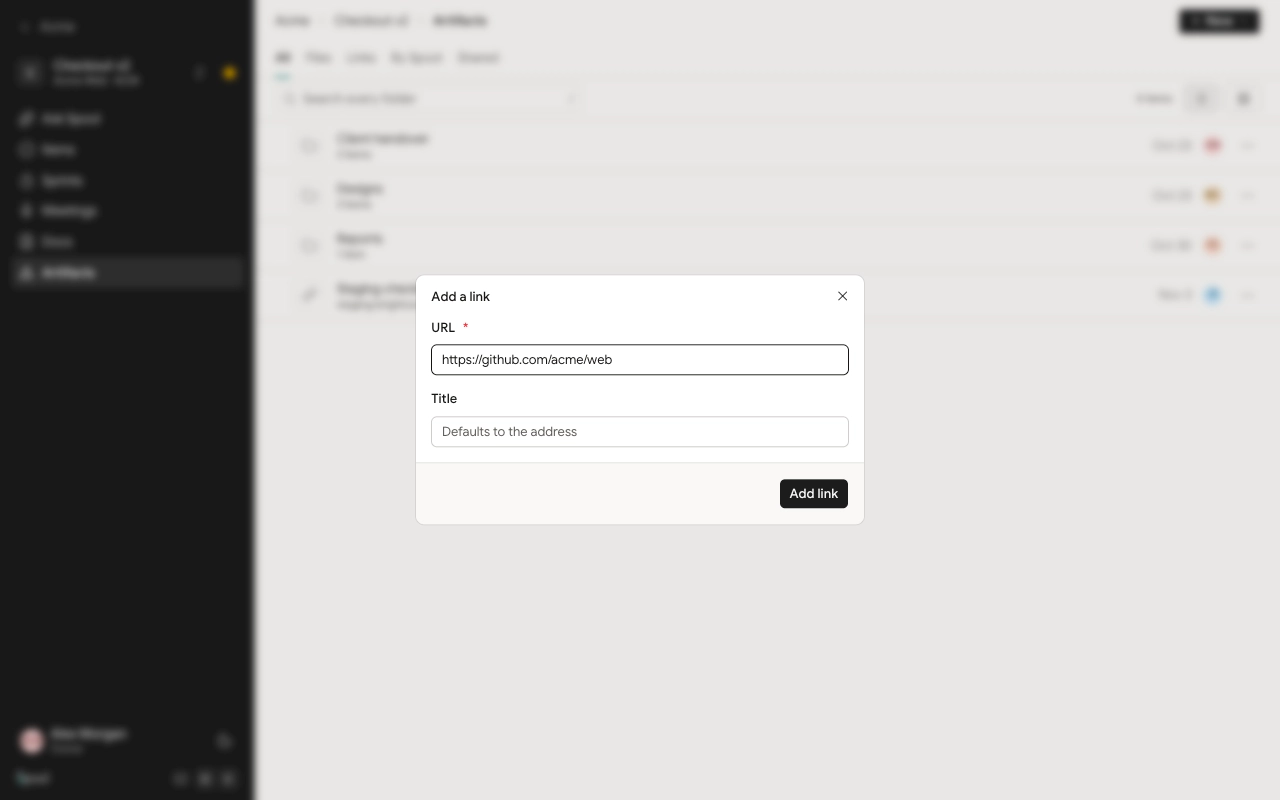
- Click New, then Add a link.
- Paste the address, for example
https://github.com/acme/web. It must start withhttp://orhttps://. - Optionally give it a Title. If you leave it empty, the link is named after its address.
- Click Add link.
Clicking a link opens the site in a new tab. To change the address or title later, pick Edit from the link’s ⋯ menu.
Move artifacts
- Drag and drop. Drag a file, folder or link onto a folder to move it there. To move it up, drop it on the
..row or on a breadcrumb. If you’ve selected several, dragging one moves them all. - Move to. Pick Move to from an artifact’s ⋯ menu, or select several and click Move to in the bar that appears, then choose the destination folder.
A folder can’t move into itself. If the destination already has something with the same name, the moved one gets a number.
Select several at once
Tick the checkbox on a row, or hold ⌘ and click. Hold ⇧ and click to select a range, or press ⌘ A to select everything shown. A bar shows how many are selected, with Move to and Delete. Press Esc to clear the selection.
Rename
Pick Rename from the ⋯ menu, type the new name and press Enter, or Esc to cancel. Names must be unique within a folder.
Delete
Pick Delete from the ⋯ menu, or select several and click Delete in the bar. Confirm in the dialog.
Other actions
The ⋯ menu on each artifact also has Open, Download for files, Copy link and Share. Copy link copies a link your teammates can open in Spool. For a saved link, it copies the link’s own address.