A workspace is your company’s home in Spool, like “Acme”. It holds your teams, people and the settings every team shares. This section covers how to set it up and keep it running.
How a workspace fits together
- Workspace: the top level. Members, roles, statuses, work item types and estimates are set here once and apply everywhere.
- Teams: groups of people inside the workspace, each with its own key (like
ACM), members, projects and extra statuses. A team is open or private. - Projects: the work a team does, such as a product or a client engagement.
Spool is invite-only. People join a workspace when someone invites them, and Guests only see the teams they’re added to. If you belong to more than one workspace, switch between them from the workspace menu at the top of the sidebar.
Open workspace settings
Click the workspace name at the top of the sidebar and choose Workspace settings. You only see the pages your role lets you use. If your role can’t use any of them, the menu item is hidden.
Each team also has its own settings. Hover over the team in the sidebar and click the gear icon, or open the team from Teams in workspace settings.
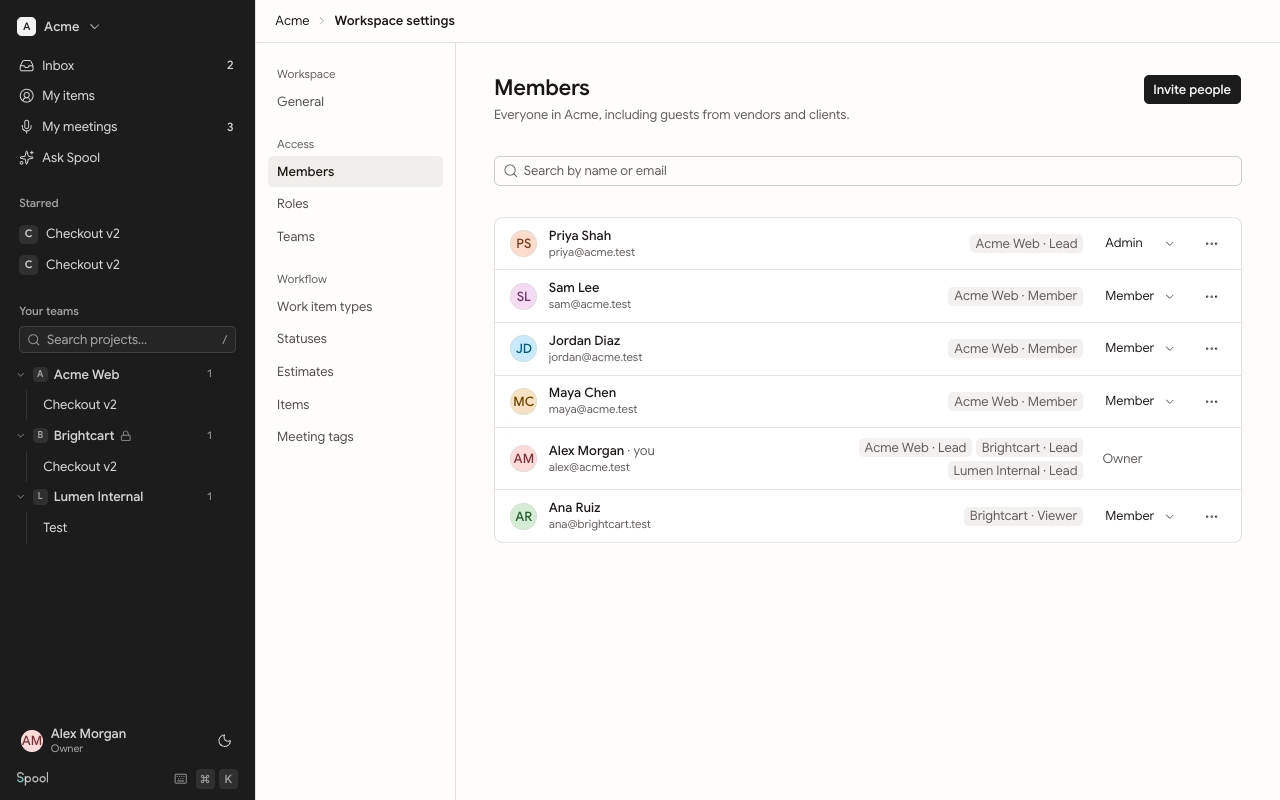
Settings map
| Page | What it controls | Who sees it |
|---|---|---|
| General | Workspace name and URL | Edit workspace settings |
| Members | People, roles and invitations | See the member directory, or any people permission |
| Roles | Workspace and team roles and their permissions | Create and edit roles |
| Teams | Every team, creating and joining teams | Any team permission, such as Join open teams |
| Work item types | Epic, Story, Task, Bug and your own types | Edit work item types |
| Statuses | Statuses shared by every team | Edit workspace statuses |
| Estimates | How items are sized | Manage estimates |
| Items | When completed items are hidden | Edit workspace settings |
| Meeting tags | Tags for meetings | Edit meeting tags |
Team settings have four pages: General, Members, Statuses and Projects. Team Leads, and workspace Owners and Admins, can use them.
Who can change what
By default:
- Owners can do everything, including changing other Owners.
- Admins can do everything except the owner-only actions, and act in every team without joining it.
- Members can see the member directory and join open teams. What they can do inside a team depends on their team role.
- Guests see only the teams they’re added to and have no workspace settings.
Your workspace can edit the Admin and Member roles and add its own. See Roles and permissions.
Change the name or URL
Who can do thisEdit workspace settings (Owners and Admins by default)
- Open Workspace settings and go to General.
- Change the Workspace name or the URL.
- Click Save changes.
Members and invites
Teams
Roles and permissions
Statuses and work item types
Estimates and item settings