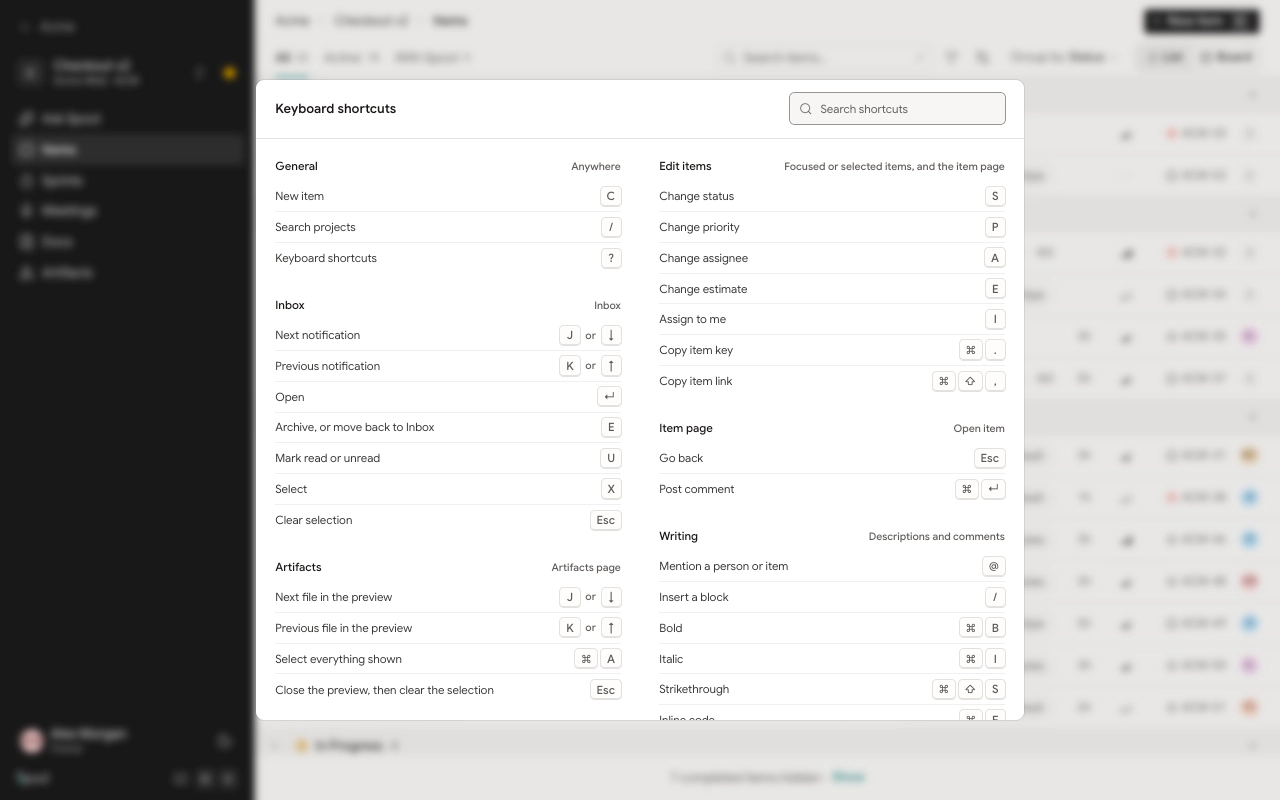
Spool is built to be used from the keyboard. This page lists every shortcut, grouped by where it works. Press ? anywhere in the app to see the same list, with a search box.
On Windows and Linux, use Ctrl wherever this page shows ⌘. ⇧ is Shift and ↵ is Enter.
General
Where: Anywhere
| Shortcut | Action |
|---|---|
| C | New item |
| / | Search projects |
| ? | Keyboard shortcuts |
Inbox
Where: Inbox
| Shortcut | Action |
|---|---|
| J or ↓ | Next notification |
| K or ↑ | Previous notification |
| ↵ | Open |
| E | Archive, or move back to Inbox |
| U | Mark read or unread |
| X | Select |
| Esc | Clear selection |
Artifacts
Where: Artifacts page
| Shortcut | Action |
|---|---|
| J or ↓ | Next file in the preview |
| K or ↑ | Previous file in the preview |
| ⌘ A | Select everything shown |
| Esc | Close the preview, then clear the selection |
Meetings
Where: Meetings list
| Shortcut | Action |
|---|---|
| J or ↓ | Next meeting |
| K or ↑ | Previous meeting |
| ↵ | Open |
Meeting player
Where: Meeting page
| Shortcut | Action |
|---|---|
| Space or K | Play or pause |
| ← | Back 10 seconds |
| → | Forward 10 seconds |
| M | Mute |
| F | Full screen |
Navigate items
Where: Item list and board
| Shortcut | Action |
|---|---|
| J or ↓ | Next item |
| K or ↑ | Previous item |
| ↵ | Open item |
| X | Select item |
| ⌘ A | Select all |
| Esc | Clear selection |
| / or F | Search |
| ⌘ B | Switch list and board |
| Space | Pick up or drop an item |
Edit items
Where: Focused or selected items, and the item page
| Shortcut | Action |
|---|---|
| S | Change status |
| P | Change priority |
| A | Change assignee |
| E | Change estimate |
| I | Assign to me |
| ⌘ . | Copy item key |
| ⌘ ⇧ , | Copy item link |
Item page
Where: Open item
| Shortcut | Action |
|---|---|
| Esc | Go back |
| ⌘ ↵ | Post comment |
Writing
Where: Descriptions and comments
| Shortcut | Action |
|---|---|
| @ | Mention a person or item |
| / | Insert a block |
| ⌘ B | Bold |
| ⌘ I | Italic |
| ⌘ ⇧ S | Strikethrough |
| ⌘ E | Inline code |
| ⌘ K | Add or edit link |
| ⌘ ⇧ 7 | Numbered list |
| ⌘ ⇧ 8 | Bulleted list |
| ⌘ ⇧ 9 | Checklist |
| Tab or ⇧ Tab | Indent or outdent |
| ⌘ Z or ⌘ ⇧ Z | Undo or redo |
| ⌘ ↵ | Send comment |
| Esc | Cancel or leave the editor |
Menus and dialogs
Where: Pickers and the new item dialog
| Shortcut | Action |
|---|---|
| 1–9 | Choose an option |
| ↵ | Create item |
| ⌘ ↵ | Create and start another |
| Esc | Close |