The doc editor is a clean writing surface that understands Markdown. Type / to add a block, @ to mention something, and select text to format it.
Who can do thisTeam Leads and Members, and workspace owners and admins
Saving
You never need to save. The draft saves a couple of seconds after you stop typing, when you click away, and when you leave the page. You’ll see Saving… under the title while it does.
Edits go into the draft, which only your team can see. Outside people see your changes once you publish a new version. See Versions and publishing.
Add blocks with /
Type / to open the block menu. Keep typing to filter it, then press Enter.
| Block | Good for |
|---|---|
| Heading 1, Heading 2, Heading 3 | Sections. They also appear in the outline on the left. |
| Bulleted list, Numbered list | Lists and steps. |
| Checklist | Acceptance criteria and to-dos you can tick off. |
| Code block | Snippets, with syntax highlighting. |
| Table | A 3 by 3 table with a header row to start from. |
| Quote | Quoting a client, a ticket or a spec. |
| Divider | A horizontal line between sections. |
| Image | Uploading a picture from your computer. |
Common Markdown shortcuts work as you type too, such as # and a space for a heading or - and a space for a list. Pasting Markdown from elsewhere turns it into formatted text.
When your cursor is in a table, a toolbar appears with Insert row above, Insert row below, Delete row, the same for columns, and Delete table.
Format text
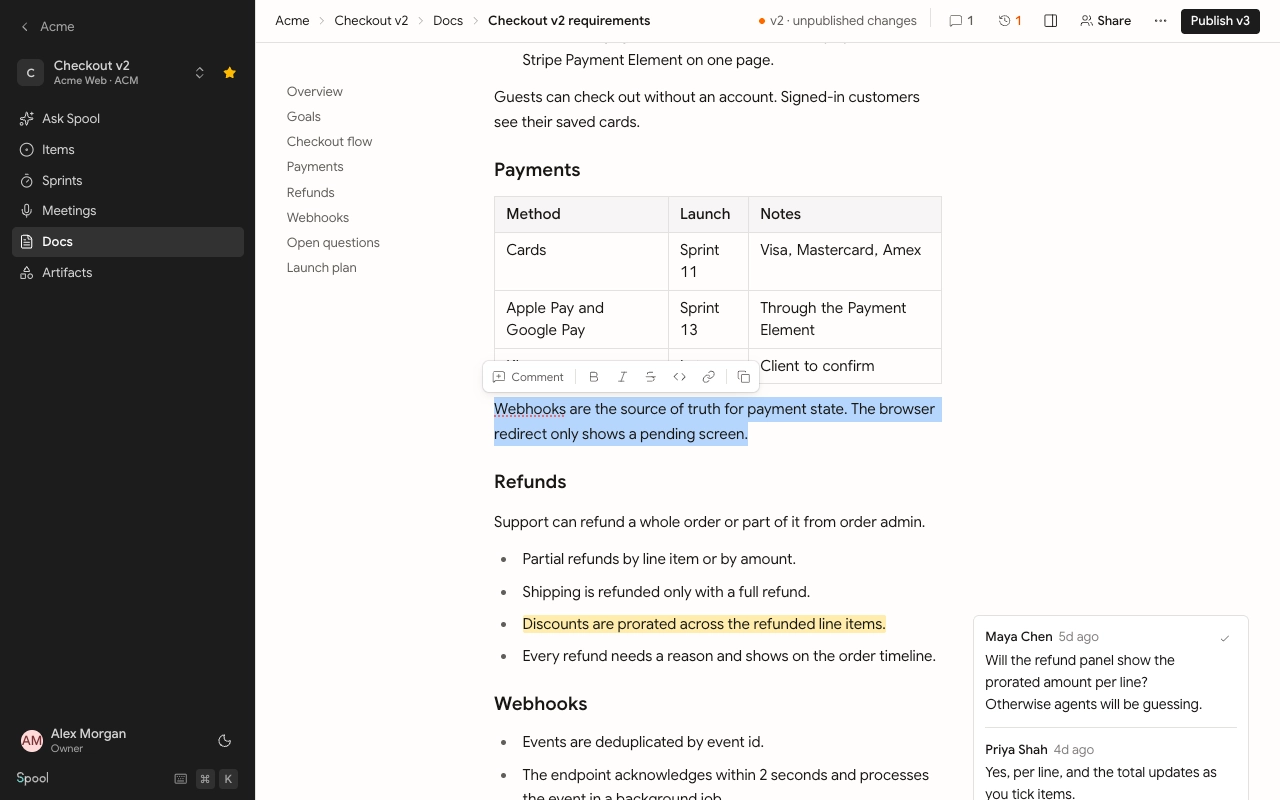
Select text to show the formatting toolbar.
| Action | Shortcut |
|---|---|
| Bold | ⌘ B |
| Italic | ⌘ I |
| Strikethrough | ⌘ ⇧ S |
| Code | ⌘ E |
| Link | ⌘ K |
The toolbar also has Copy as Markdown, to paste a passage into a chat or a code editor, and Comment, to start a comment thread on the selection. See Comments.
Mention people and work with @
Type @ and start typing a name, an item key or a title. The menu searches:
- People in the team.
- Items in the team, such as
ACM-42. - Docs in the same project.
- Artifacts in the same project.
A mention becomes a link you can click. When you mention a person, they get a notification in their inbox once the draft saves. Pasting an item key or an item link also turns it into a mention.
Add images
Add an image in any of three ways:
- Pick Image from the
/menu and choose a file. - Paste an image from your clipboard.
- Drag an image file into the doc.
You’ll see a preview while it uploads. Only images can go into a doc. To keep other files, such as PDFs or spreadsheets, add them to the project’s artifacts and mention them with @.
Link the doc to other work
Open Details at the top right to see how the doc connects to everything else:
- Origin is where the doc came from, such as the meeting where it was discussed. It shows “Written here” when there isn’t one.
- Items from this doc lists items whose origin is this doc.
- Links in this doc lists everything you mentioned in the text.
- Mentioned in lists the items, docs and other records that mention this doc.
- Related lists items you linked by hand.
To add a link, click Add link and search. Pick an item under Related item, or pick a meeting or doc under Set as origin.