Create an item whenever there’s work to track. You can add one from anywhere in the workspace, set its main properties as you go, and fill in the details on the item page.
Who can do thisTeam leads and members, plus workspace owners and admins
Create an item
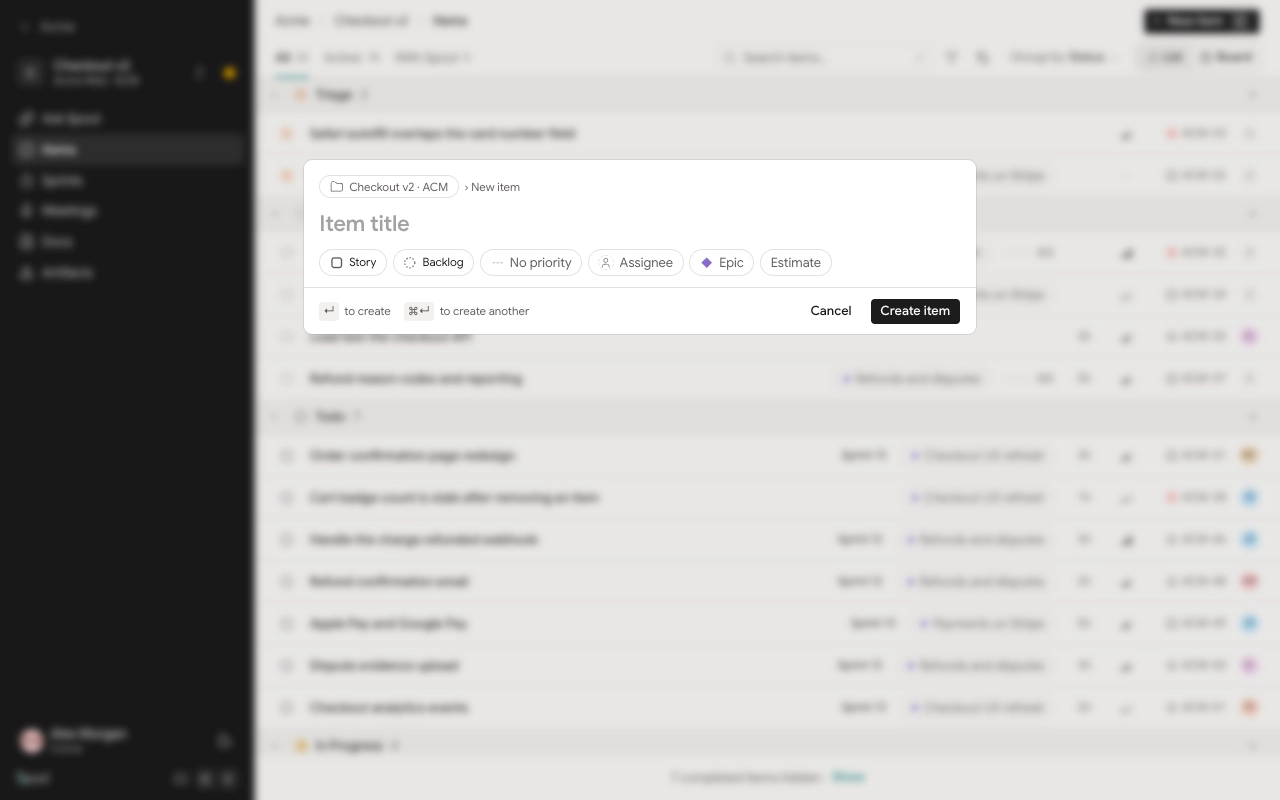
- Press C anywhere in the workspace, or click New item at the top of a project’s Items page or My items.
- Check the project at the top of the dialog. It is filled in when you start from a project.
- Type a title.
- Optionally set the type, status, priority, assignee, epic and estimate using the chips under the title. In a chip’s menu, press 1 to 9 to pick an option.
- Press Enter or click Create item to create it and open it. Press ⌘ Enter instead to create it and keep the dialog open for the next one.
If you skip a field, Spool fills in sensible defaults: the first standard type (usually Story) and the team’s first Backlog status. You become the item’s Requested by person.
You can also create items in context. Each group on the Items page has a + button that presets that group, for example a status column on the board. On an epic’s page, Add an item… under In this epic creates an item inside that epic.
Types
Every workspace starts with four types:
| Type | Use it for |
|---|---|
| Epic | A large body of work that groups stories, tasks and bugs |
| Story | A user-facing change with acceptance criteria |
| Task | A unit of work that isn’t user-facing |
| Bug | Something that doesn’t work as intended |
Workspace owners and admins manage types in Settings under Work item types. They can rename the default types, edit their descriptions, turn them off, and add new epic-level or standard types. Default types can’t be deleted.
A few rules keep the structure simple:
- Only epics can contain items, and an item’s epic must be in the same project.
- Epics can’t have an epic of their own, aren’t estimated and can’t be planned into a sprint.
- An epic that still has items can’t change to a standard type. Move its items out first.
Write the description
Open the item and click into the description to write. Type / to insert a block such as a heading, list or checklist, and @ to mention a person, item, doc or artifact. Changes save as you go.
When the description is empty, a button such as Story template appears under it. Click it to start from the template for that type:
- Epic: Goal, Scope, Success looks like.
- Story: a line on why it matters, What we’re building, Acceptance criteria, Out of scope.
- Task: what needs doing and why, then a Checklist.
- Bug: Steps to reproduce, Expected, Actual, Acceptance criteria.
Types you add yourself don’t have a template.
Acceptance criteria
Every checkbox in the description counts as a criterion. Spool keeps a running count, such as 2/5, and shows it as Criteria in the item’s properties and in a column on lists. Tick a box and the count updates straight away.
Edit an item
On the item page, click the title to rename it. Change properties in the panel on the right: Status, Type, Priority and Estimate under Details, Assignee and Requested by under People, and Epic and Sprint under Planning.
You can also edit from a list or board without opening the item. Focus or select items and press S for status, P for priority, A for assignee, E for estimate, or I to assign to yourself.
Delete an item
On the item page, click the trash icon in the header and confirm. Its comments and history are deleted too, and this can’t be undone. Deleting requires the same team role as creating.