The Items page shows a project’s work the way you need it at the moment: a list for scanning and triage, a board for following work through its statuses. Spool remembers your choices for each page in your browser.
List and board
Switch with the List and Board toggle at the top right, or press ⌘ B.
- List shows one row per item with its status, title, criteria progress, estimate, priority, type, key and assignee. Collapse a group by clicking its header.
- Board shows one column per status. Drag a card to another column to change its status.
In a list grouped by status, epic or sprint, dragging an item into another group changes that field. When the order is Manual, you can also drag items up and down to rank them. To move an item with the keyboard, focus it and press Space to pick it up, then again to drop it.
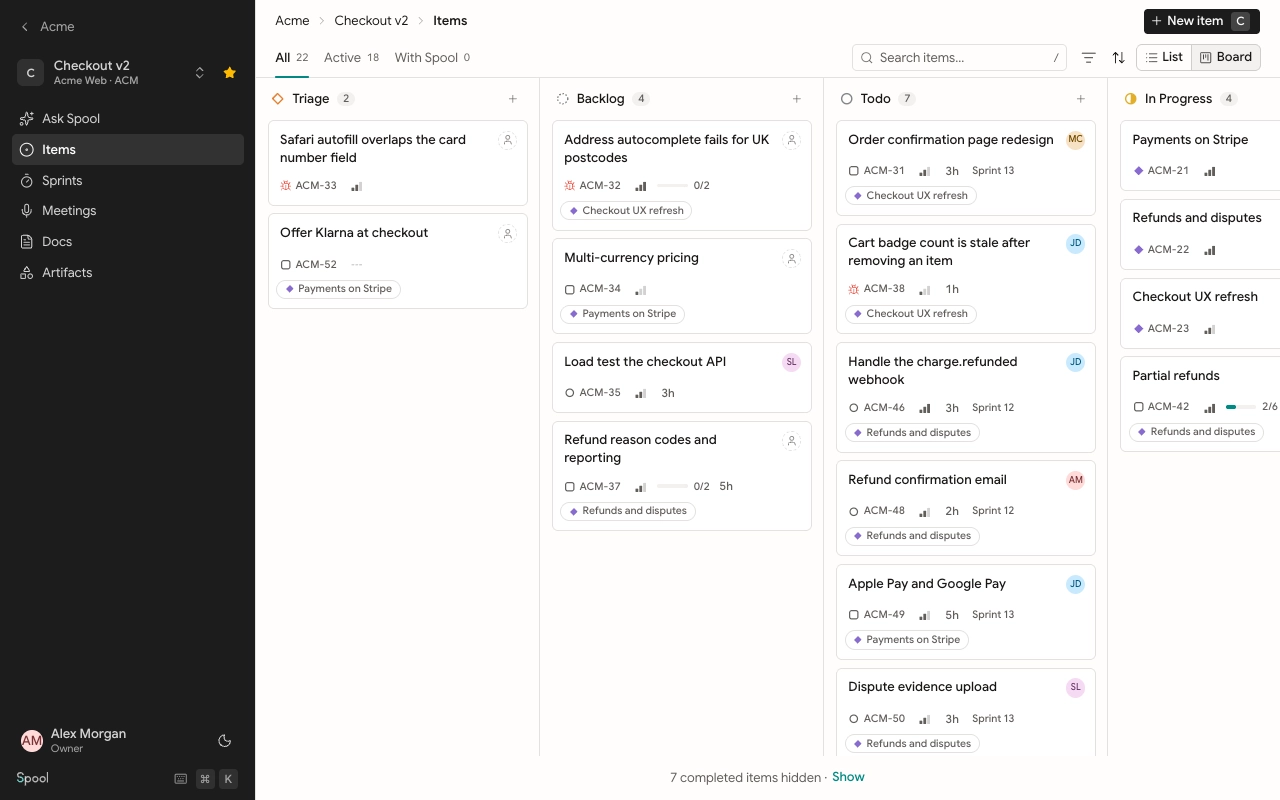
Tabs
- All shows every item.
- Active hides items in Done and Canceled statuses.
Each tab shows how many items it holds with your current filters.
Group and order
In list view, Group by groups items by Status, Epic or Sprint. The board always groups by status.
The order button sets Order by:
| Order | Sorts by |
|---|---|
| Manual | The order your team set by dragging |
| Priority | Urgent first, then by manual order |
| Last updated | Most recently changed first |
| Created | Newest first |
Filter and search
Click the filter button to narrow the view by Status, Priority, Assignee, Type or Epic. You can pick several values in each. Under Assignee, Me always means whoever is looking, and No assignee finds unowned work. Active filters appear as chips under the toolbar: remove one with its ×, or click Clear to remove them all.
To search, type in Search items… or press / or F. Search matches titles, and typing a full key such as ACM-42 finds that item.
Hide completed items
Lists and boards hide items that have been Done or Canceled for a while, so finished work doesn’t pile up. The default is two weeks. When items are hidden, a line at the bottom says how many, with a Show link. To see them all, open the order menu and tick Show all completed items.
Workspace owners and admins choose the delay in Settings under Items, with Hide completed items after set to 1 week, 2 weeks, 3 weeks, 1 month or Never hide. Sprints, search and links still show hidden items.
Work with several items
Press X to select the focused item, or ⌘ A to select everything shown. A bar appears at the bottom where you can change Status, Priority, Assignee or Estimate for all of them, move them to another Project in the same team, or delete them. Press Esc to clear the selection.
Use J and K or the arrow keys to move between items, and Enter to open one.
My items
My items in the sidebar lists every item assigned to you or requested by you, across all your teams. It works like a project’s Items page, with a few differences:
- It shows which project each item is in.
- It groups by status only, and orders by last updated, priority or created. There’s no manual order across projects.
- New item presets you as the assignee, and you choose the project in the dialog.