Spool has two sidebars: one for the whole workspace and one for the project you’re in. This page shows what’s in each and the quickest ways to jump around.
The workspace sidebar
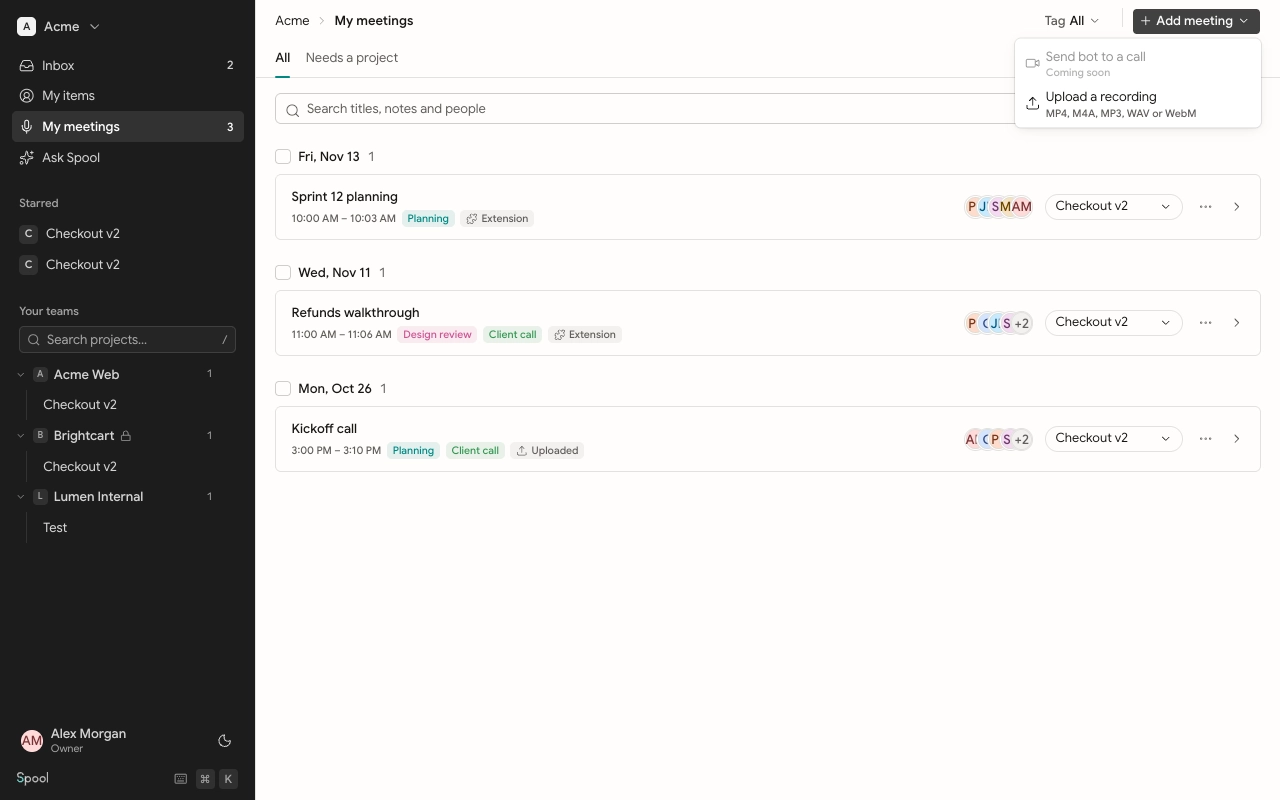
This is what you see when you’re not inside a project. From top to bottom:
- Workspace switcher: click the workspace name to switch to another workspace you belong to. If you have access, it also has Workspace settings and Invite people.
- Inbox: your notifications. The badge shows how many are unread.
- My items: items assigned to you or requested by you, across all your teams.
- My meetings: the meetings you’ve added, with a count.
- Starred: projects you’ve starred, if any.
- Your teams: every team you belong to, with its projects underneath.
Click a team to fold or unfold its projects. A lock icon marks a private team. Long teams show the first five projects and a more link. If you can manage a team, a gear icon appears next to its name when you hover, which opens the team’s settings.
The project sidebar
When you open a project, the sidebar switches to that project:
- Back to the workspace: the workspace name at the top, with a back arrow.
- Project switcher: the project’s name, team and key. Click it to jump to another project.
- Star: the star next to the project name adds it to your Starred group.
- Project pages: Items, Sprints, Meetings, Docs and Artifacts.
A project opens on its Items page.
Starred projects
Star the projects you open most so they sit at the top of the workspace sidebar. Hover any project in the sidebar and click the star, or use the star in the project sidebar. Click the star again to unstar it. Stars are yours alone and don’t change what anyone else sees.
Searching for a project
Above Your teams there’s a Search projects… box.
- Press / from anywhere, or click the box.
- Type part of a project name, a team name or a team key.
- Press ↵ to open the first match, or click any result.
To search inside a project’s items, open its Items page and press / or F.
The page header
Every page has a header with breadcrumbs that show where you are, like a project name followed by the page. Click any earlier crumb to go back up. On narrow screens the middle crumbs fold into a … menu, and a button appears to open the sidebar.
The right side of the header holds the page’s main actions, such as New item on the Items page or Add meeting on the Meetings page.
Your account menu
At the bottom of the sidebar, click your name to open your account settings: Profile, Notifications, Security and Agents. The same menu has Keyboard shortcuts and Sign out. The moon or sun icon next to it switches between dark and light themes.