Publishing takes a snapshot of the draft and saves it as the next version: v1, v2 and so on. People outside the team only ever see the latest published version, so you decide when your changes go out.
Who can do thisTeam Leads and Members, and workspace owners and admins
Drafts and versions
Your team always edits the draft. While you work, the badge next to the title shows v2 · unpublished changes, and anyone you’ve shared the doc with keeps seeing v2. Nothing reaches them until you publish.
Publishing is how you mark a doc as ready: a requirements doc the client signed off, a design the team agreed on, or the next revision of a checklist.
Publish a version
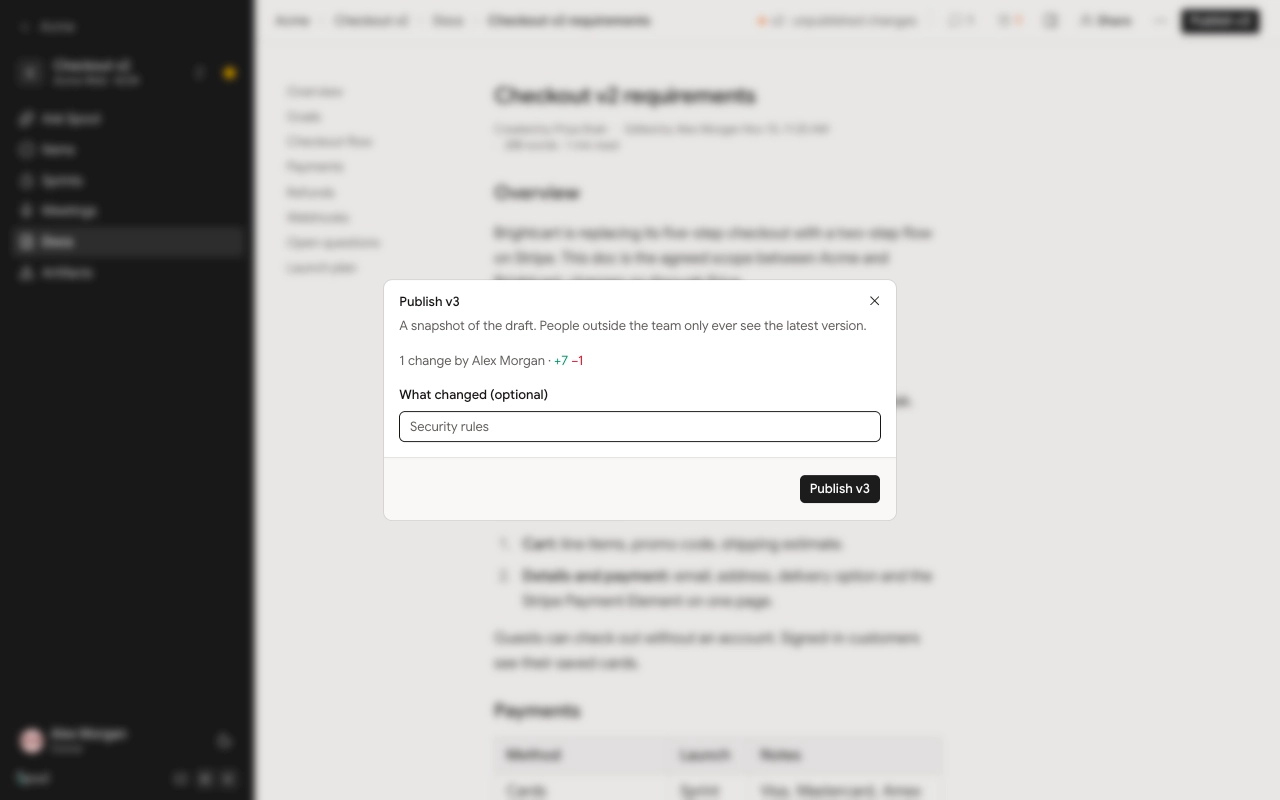
- Click Publish v3 (the number is always the next version) at the top right of the doc.
- Check the summary of what’s going out: how many changes, who made them, and how many lines were added and removed.
- Optionally fill in What changed (optional), such as “Security rules”. This note shows in the version history.
- Click Publish v3.
If the doc is shared, the dialog tells you who will see the new version, for example “2 outside people and anyone with the public link will see this version.”
The button is disabled when there’s nothing new to publish. A first version needs some text in the doc.
History
Click the History button at the top right. Its number counts the changes made since the last publish. The panel has three parts:
- Draft at the top says how far the draft has moved, for example “3 changes since v2. Outside people still see v2.”
- The list of changes since the last publish, newest first. Edits one person makes in a row, a few minutes apart, are grouped into a single change. Each shows who made it and how many lines were added and removed.
- Published lists every version with its note, who published it and when. The newest is marked Latest.
Below them, Activity records publishes, renames, shares, restores and other events on the doc.
Review a change or a version
Click any change to see it as a line-by-line comparison in place of the editor. Click a version to read it as it was published. On v3, for example, click Changes since v2 to see what that publish changed, and Full text to go back to reading it.
Click Back to draft to return to editing.
To see exactly what outside people see right now, open the ⋯ menu and pick See v2 (what outside people see).
Undo, restore and discard
- Undo this change. Open a change and click Undo this change. The draft goes back to how it was before that change.
- Restore into draft. Open a version and click Restore into draft to copy that version’s text into the draft. Publish again if you want outside people to see it.
- Discard unpublished changes. Open the ⋯ menu and pick Discard unpublished changes to put the draft back to the latest published version.
None of these erase history. Each one is recorded as a new change, so you can undo it from History too.