This page takes you from your invite email to a project with a meeting and an item in it. It takes about ten minutes.
Before you start
Spool is invite-only. Someone in your workspace has to invite your email address first. If you sign in without an invite, you’ll see No workspace yet and nothing else until an invite arrives. To get your company set up, request access.
Accept your invite
The invite email links to a page that says Join Acme and shows the role you were invited as.
- Open the link in the invite email.
- If you aren’t signed in, click Continue as your email address. You’ll sign in and come straight back to the invite.
- Click Accept and open Acme.
If you’re signed in with a different email, Spool tells you and offers Switch to the invited address. Invites expire after 7 days, so ask for a new one if yours has.
Sign in
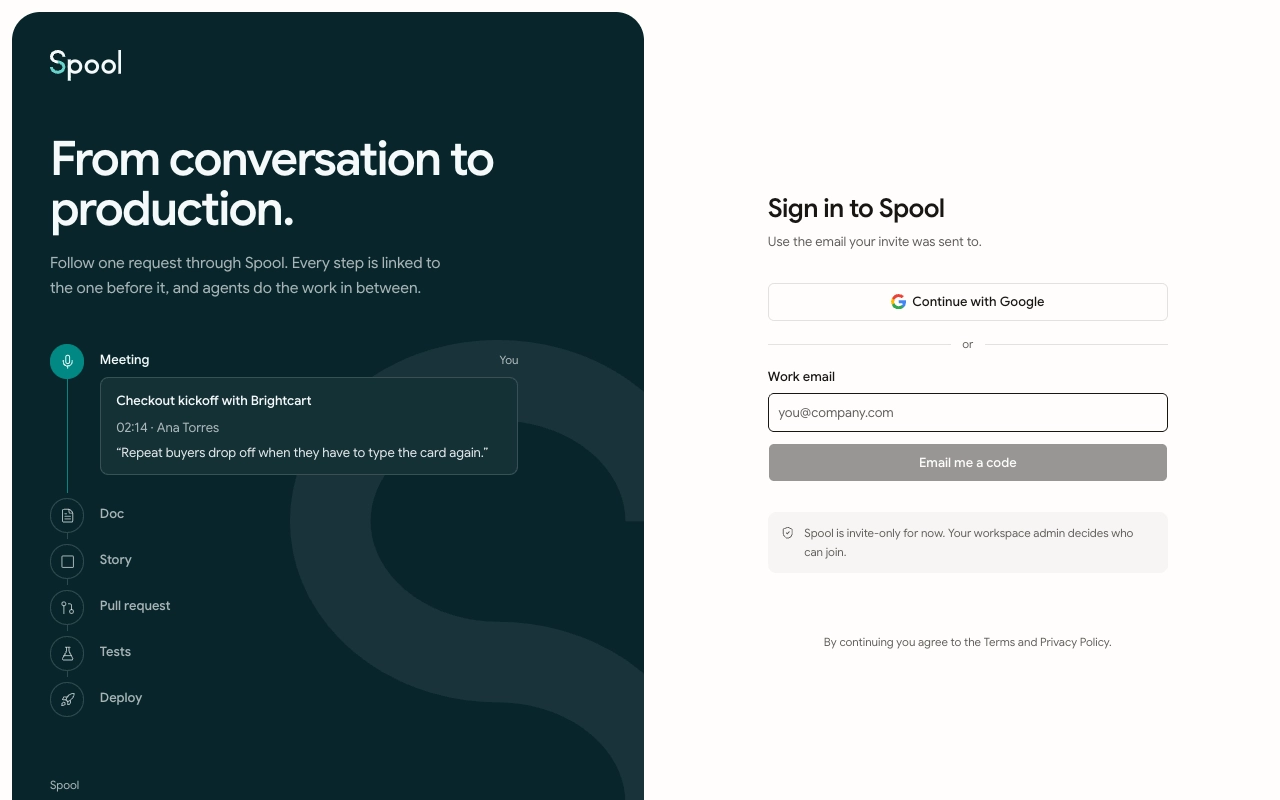
You can sign in two ways. Use the same email address your invite was sent to.
- Continue with Google: pick your Google account. If it has the same verified email, it links to your Spool account.
- Email me a code: enter your Work email, then type the 6-digit code from the email. The code expires in 5 minutes. If it doesn’t arrive, wait 30 seconds and click Send a new code.
Open a project
After you sign in, you land in your workspace’s Inbox. The sidebar on the left lists Your teams and the projects in each.
- Click a team in the sidebar to expand it.
- Click a project. It opens on its Items page.
Who can do thisTeam Leads and Members (team:projects:create), plus workspace Owners and Admins
If your team has no projects yet, a team Lead or Member can add one. Open the team’s settings with the gear icon next to its name, go to Projects and click New project. Give it a name, like “Checkout redesign”, and an optional description.
Upload your first meeting
Spool turns a recording into a transcript and notes. You can also record calls with the Chrome extension, covered in the meetings docs.
- In the project sidebar, click Meetings.
- Click Add meeting, then Upload a recording.
- Drop in an MP4, M4A, MP3, WAV or WebM file up to 2 GB.
- Add a Title, or leave it empty and Spool names it. Check the Date and time, and add Tags if you like.
- Click Upload.
Spool starts writing the notes straight away. When they’re ready, you get a Meeting notes notification in your Inbox.
Create your first item
Who can do thisTeam Leads and Members (team:items:create), plus workspace Owners and Admins
- Press C anywhere, or click New item on the project’s Items page.
- Type an Item title. The project is picked for you when you start from a project page.
- Set the type, status, priority, assignee, epic or estimate if you want to. You can change them later.
- Press ↵ or click Create item. Press ⌘ ↵ instead to create it and start another.
The new item gets a key from its team, like ACM-42, and starts in Backlog unless you picked another status. You can type @ACM-42 in any comment or description to link to it.