Spool Recorder is a Chrome extension that records a call running in your browser and saves it to Spool as a meeting. It works with Google Meet, Microsoft Teams on the web and Zoom on the web. The recording happens in your own browser tab.
Before you start
- You need Chrome 116 or newer.
- Spool Recorder isn’t in the Chrome Web Store yet. You install it from a zip file: download Spool Recorder.
- The recorder uses your Spool sign-in, so sign in to Spool in the same Chrome profile.
- Recordings go to the workspace you have open in Spool. If you belong to more than one, open the right workspace in Spool before you record.
Install the extension
- Download the Spool Recorder zip and unzip it.
- Open
chrome://extensionsin Chrome and turn on Developer mode. - Click Load unpacked and pick the unzipped folder.
- Pin the Spool icon to your toolbar so it’s easy to reach during a call.
Record a call
- Join your call in Google Meet, Teams or Zoom in Chrome.
- Click the Spool icon in the toolbar, or press Alt Shift R (Control Shift R on a Mac). The Recorder panel opens beside the call.
- Optionally pick a project. Leave it on No project, only you to keep the meeting private until you file it.
- Optionally pick a microphone. System default works for most people.
- Click Start recording.
- Type anything you want to remember in My notes. Only you see these, and they’re saved with the meeting.
- Click Stop when the call ends.
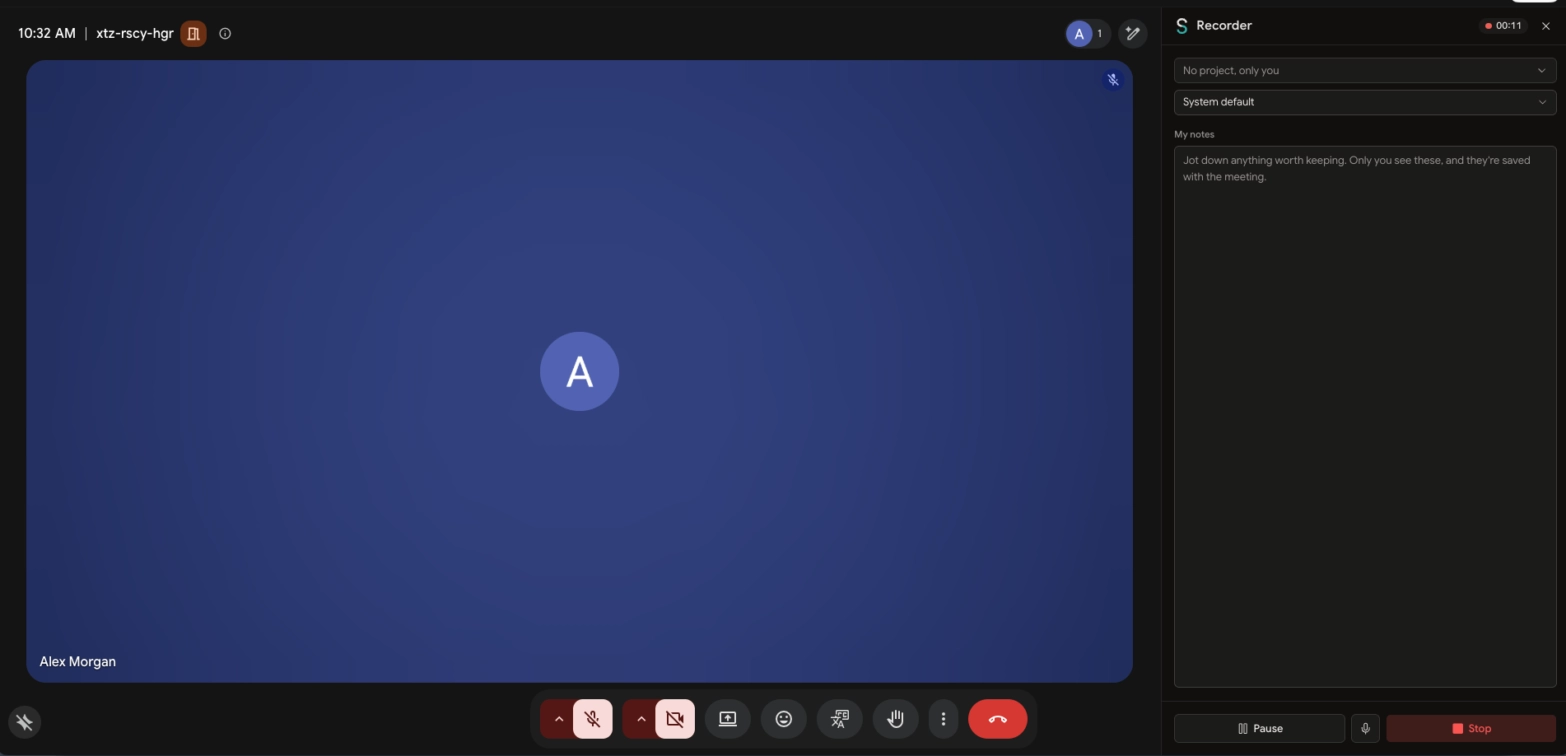
Chrome only lets an extension record a tab right after you click its icon or press its shortcut, so the panel never opens or starts recording on its own. You can change the shortcut at chrome://extensions/shortcuts.
Your microphone
The recorder captures the call’s audio and your own voice. The first time, Chrome asks for microphone access on a separate Allow your microphone page. Click Allow microphone, then go back to the call and press Start recording.
If you skip this, the call is still recorded but your own voice isn’t. During a call you can Pause, Resume and mute your microphone from the panel. Closing the panel doesn’t stop the recording.
When recording stops
Recording stops when you click Stop or close the call’s tab. On Google Meet it also stops shortly after you leave the call. On Teams and Zoom, click Stop or close the tab.
You can record one call at a time. If another tab is already recording, stop it there first.
What happens next
The panel shows Saving to Spool… while the file uploads. You can close the tab: the upload keeps going in the background. When it’s done you’ll see Saved to Spool with an Open meeting button.
If an upload fails, the recording stays on your computer and the extension retries on its own for a while. You can also click Retry now. An unfinished upload picks up again after a browser restart.
Spool then writes the transcript and notes, usually within a few minutes. In your meetings list, recordings from the extension are marked Extension.