A meeting in Spool is a recorded call with its transcript and notes attached. You record or upload the call, and Spool writes up what was said so anyone who missed it can catch up in a couple of minutes.
Ways to add a meeting
There are two ways to get a call into Spool:
- Record it with the Chrome extension. Spool Recorder records a Google Meet, Microsoft Teams or Zoom call that runs in your browser, then saves it to Spool when you stop.
- Upload a recording. Already have a file from another tool? Upload an MP4, M4A, MP3, WAV or WebM file up to 2 GB.
Either way, Spool takes it from there. You don’t need to wait on the page.
What you get
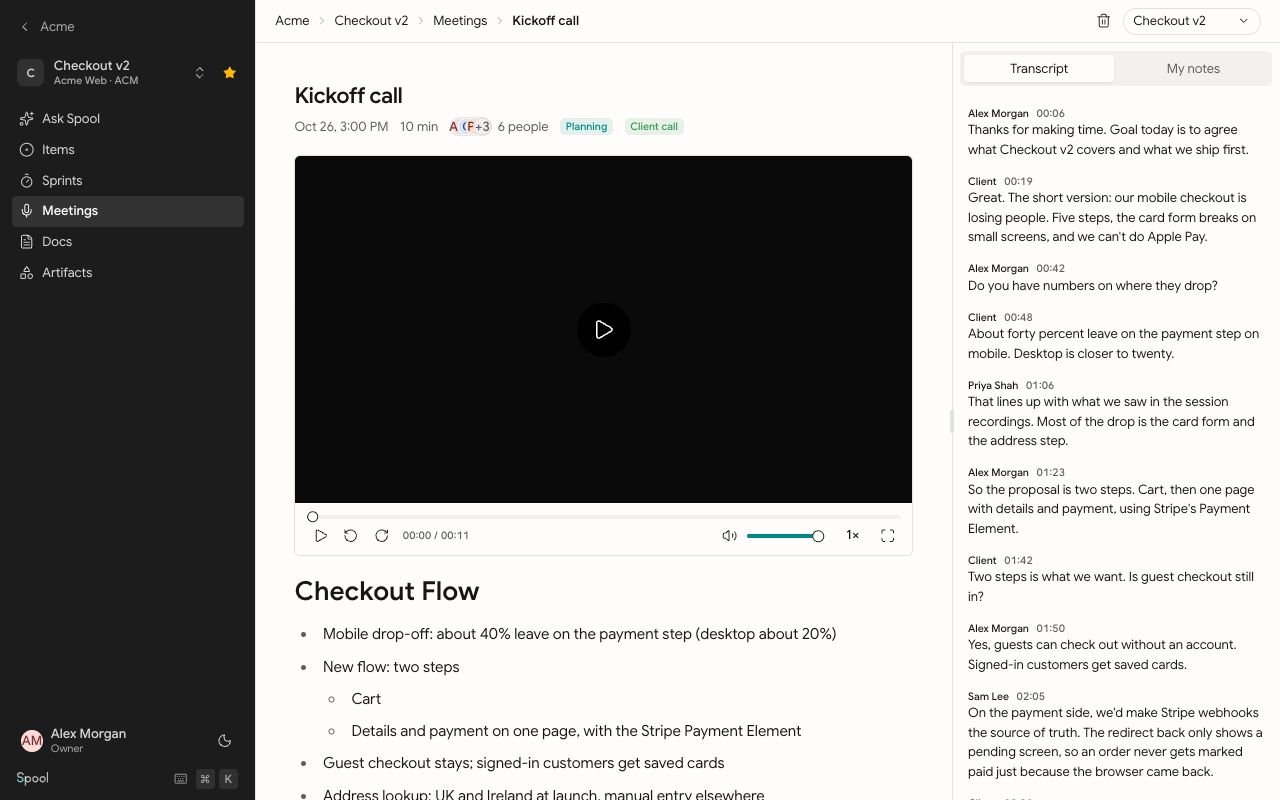
Once a meeting is processed, its page has:
- The recording, with a player you can scrub, speed up or watch full screen.
- A transcript, split by speaker and timestamped. Click any line to jump the recording to it.
- Notes, written by Spool from the transcript. They’re grouped by topic, keep decisions and specifics, and end with Next Steps when someone agreed to do something.
- A title and tags. If you leave the title empty, Spool names the meeting. It also suggests tags from your workspace’s tag list.
- My notes, a private notepad only you can see.
My meetings and project meetings
Meetings show up in two places.
My meetings, in the sidebar, lists every meeting you added. A new meeting has no project at first, so it sits in Needs a project at the top of the list. Only you can see it until you move it into a project.
Meetings inside a project lists every meeting filed in that project. Once a meeting is in a project, people on that project’s team can open it, read the notes and use it as the origin of items and docs.
This keeps raw recordings private by default. You decide which calls the team should see by filing them.
In this section
Record with the Chrome extension
Upload a recording
Notes and transcript
Turn a meeting into work
Access, projects and tags