Share a doc when someone outside the team needs to read it, such as a client reviewing requirements or a vendor checking a design. They see only that doc, never the rest of the project, and only its latest published version.
Who can do thisTeam Leads, and workspace owners and admins
What outside people see
Everyone in the doc’s team already has access, with what their team role allows. Sharing is for everyone else.
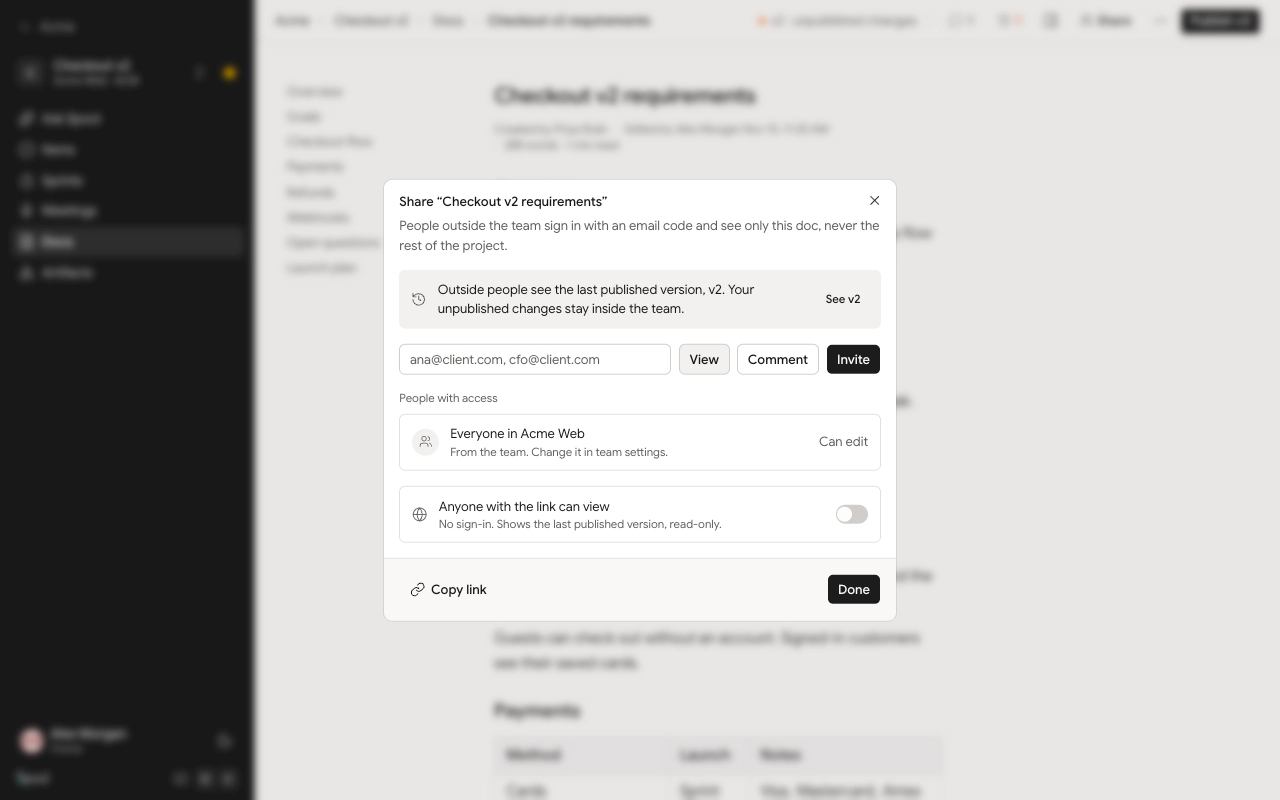
Outside people always see the latest published version. Your team’s draft and unpublished changes stay inside the team. If you share a doc before publishing, they’ll see a page saying nothing has been published yet, until you publish v1. See Versions and publishing.
There are two ways to share:
| Invite by email | Public link | |
|---|---|---|
| Sign-in | Yes, with a code sent to their email | No |
| Access | Can view or Can comment | Read-only |
| Needs a published version | No, but they see nothing until you publish | Yes |
Invite people by email
- Click Share at the top right of the doc.
- Type one or more email addresses, separated by commas. You can invite up to 20 at once.
- Choose View or Comment.
- Click Invite.
Each person gets an email with a link to the doc. They sign in with a code sent to that address. The doc only opens for the email it was shared with, so if they sign in with a different address they see This doc isn’t shared with you and need an invite for that address.
With Comment access, they can comment on passages or the whole doc, and reply to threads. See Comments.
If a teammate opens a shared link, Spool takes them to the doc inside the workspace instead.
Change or remove access
Under People with access you’ll see Everyone in your team at the top, then each person you’ve invited, with who invited them and when.
- Use the menu next to a person to switch between Can view and Can comment.
- Click the × next to a person to remove their access.
Share with a public link
A public link lets anyone with the address read the doc without signing in. It shows the latest published version, read-only, with no comments.
- Publish at least one version. The switch stays off until you do.
- Click Share.
- Turn on Anyone with the link can view.
- Choose how long it lasts: Expires in 7 days, Expires in 30 days or Never expires.
- Click Copy link and send it.
Turn the switch off to stop the link working straight away. After it expires or is turned off, visitors see This link doesn’t work anymore.
When sharing ends
Shares and public links stop working when you remove them, when the doc is deleted, or when its project or team is archived.
The doc list’s Shared tab shows every doc that’s shared by email or has a public link. In the doc, Details sums up who has access.