Every item keeps its conversation and its connections in one place. Comments and changes share a single timeline, mentions pull the right people in, and links show how the item relates to the rest of the project.
Who can do thisTeam leads, members and viewers can comment. Adding and removing links needs a team lead or member role
Comments and replies
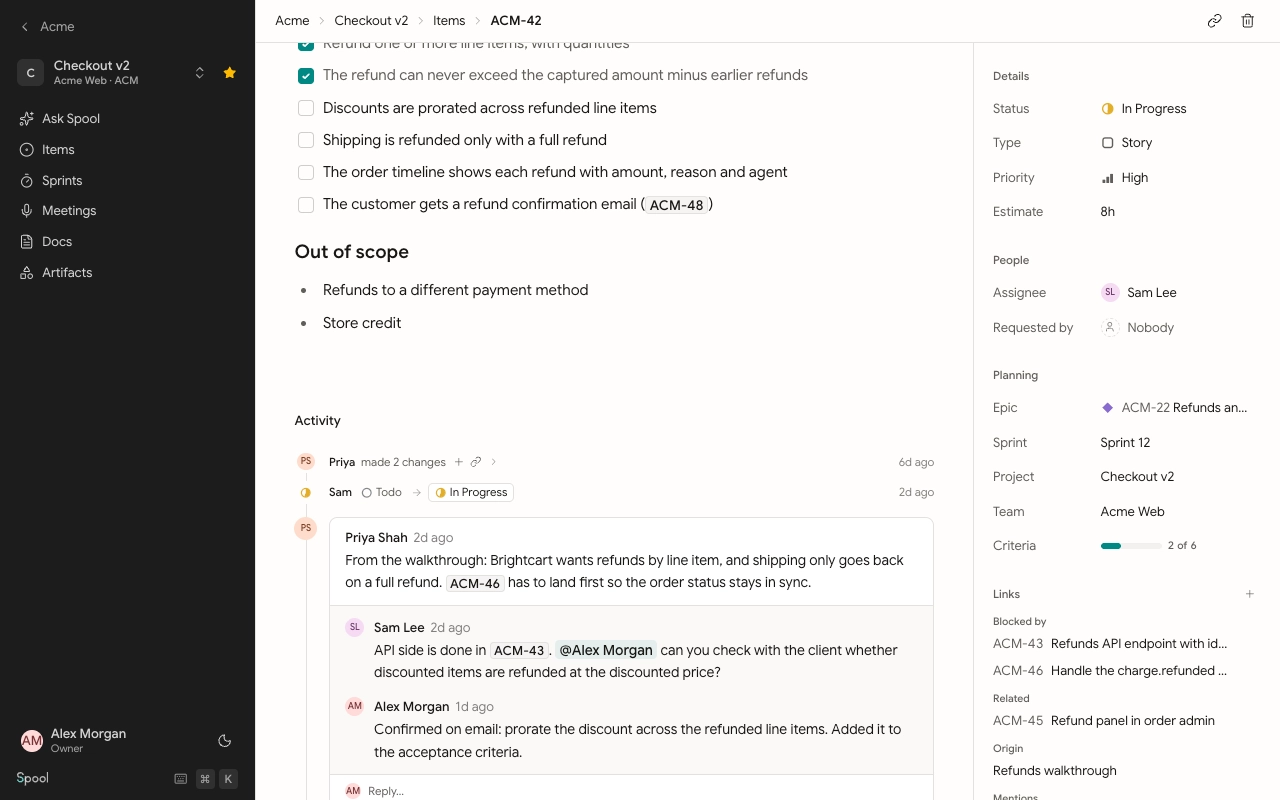
Scroll to Activity on the item page and write in Leave a comment…. Click Comment or press ⌘ Enter to post. Comments support the same formatting as descriptions, including lists, code and mentions.
To answer a comment, click Reply… under it. Replies stay together in one thread, so a side discussion doesn’t get lost among other comments.
Hover over one of your comments to see Edit and Delete. Edited comments show edited. A deleted comment leaves “This comment was deleted.” in the thread so replies still make sense. People who can delete items can also delete other people’s comments.
Activity
The same timeline records every change to the item: title, status, type, priority, assignee, requester, estimate, epic, sprint, links and description edits, with who made them and when. Description edits show what changed. Click Show older activity to load earlier history.
Mentions
Type @ in a description or comment and pick from People, Items, Docs or Artifacts. The mention becomes a link, and hovering a person or item shows a preview.
- Mentioning a person notifies them in their Inbox and subscribes them to the item.
- Mentioning an item, doc or artifact adds a Mentions link on this item and a Mentioned in link on the other side, so both records know about each other.
Subscribe to an item
Subscribing means you hear about new comments, status changes and other important updates on an item. You’re subscribed automatically when you create an item, are assigned to it, are its requester, are mentioned in it, or comment on it.
To change this, click Subscribe or Unsubscribe at the bottom of the item’s properties panel. Unsubscribing stops the general updates, but you’ll still be notified when someone assigns you, mentions you or replies to you.
Links
The Links section in the properties panel lists everything this item is connected to, grouped by how they relate. To add one, click +, choose a link type, and search for the record:
| Link type | Connects to | Shows on this item | Shows on the other side |
|---|---|---|---|
| Related | Items, docs and artifacts | Related | Related |
| Blocks | Items | Blocks | Blocked by |
| Duplicate | Items | Duplicate of | Duplicated by |
| Origin | Meetings and docs | Origin | Source of |
Use Origin to record where the work came from, such as the meeting where it was agreed or the spec that describes it. Use Blocks to show dependencies. Blockers are listed first, and people subscribed to the blocked item hear when what blocks it changes.
Hover a link and click × to remove it. Mention links come from text, so they go away when you remove the mention.
Copy and share an item
Click the link icon in the item header, or press ⌘ ⇧ ,, to copy the item’s address. Press ⌘ . to copy just its key.