Connecting takes a minute: add the Spool server to your agent, sign in once in your browser, and approve what the agent may do. Anyone with a Spool account can connect an agent.
The server URL
https://app.spool.team/api/mcpYou’ll also find it, with a copy button, under Agents in your account settings. Open your avatar menu at the bottom of the sidebar and choose Agents.
Set up your client
Pick your client and follow its steps. Each one ends with you signing in to Spool in the browser.
Run this in your terminal:
claude mcp add --transport http spool https://app.spool.team/api/mcpThen in Claude Code, run /mcp, choose spool and sign in.
Add this to ~/.cursor/mcp.json:
{
  "mcpServers": {
    "spool": {
      "url": "https://app.spool.team/api/mcp"
    }
  }
}
Then open Cursor Settings, find spool under MCP and sign in.
Add this to .vscode/mcp.json:
{
  "servers": {
    "spool": {
      "type": "http",
      "url": "https://app.spool.team/api/mcp"
    }
  }
}
Start the server from that file and sign in when asked.
Run this in your terminal, then sign in in the browser:
codex mcp add spool --url https://app.spool.team/api/mcp
codex mcp login spool
Open the connector settings and add a custom connector. Paste the server URL above, then sign in.
Any other client that supports remote MCP servers with OAuth works the same way: add the URL and sign in.
Approve the connection
When your agent connects for the first time, Spool opens in your browser.
- Sign in to Spool if you aren’t already.
- Check the page that says [agent] wants to access Spool. It shows which agent is asking and the email you’re signed in with.
- Read is always included. Leave Write ticked if the agent should create, edit and delete items, comments, links and projects. Untick it for a read-only connection.
- Click Allow. To refuse, click Cancel.
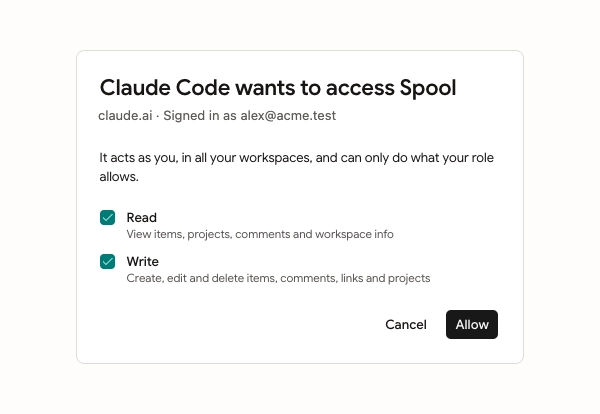
The agent acts as you, in all your workspaces, and can only do what your role allows.
Check it works
Ask your agent something simple, like “Who am I in Spool?” or “List my open items in Spool”. It should answer with your name, your workspaces or your assigned items. If it says it can’t reach Spool, run its sign-in step again.
Pin a workspace to a repo
One connection covers all your workspaces. If you’re in more than one, add a line like this to the repo’s AGENTS.md or CLAUDE.md so agents working there use the right one:
Spool workspace: acmeThe Agents page in your account settings has this line ready to copy for the workspace you’re in.
Manage connected agents
The Connected agents list on the Agents page (also shown on Security) has one row per agent. Each row shows the agent’s name and website, whether it has Read only or Read and write access, when you connected it, and when it was last used.
Staying connected doesn’t depend on your browser. Signing out of Spool doesn’t disconnect your agents. A connection that goes unused for 30 days needs you to sign in again; the row shows the date.
To remove an agent, click Disconnect and confirm. It stops working right away and has to be approved again to reconnect.