Planning is where you decide what the team takes on next. Create the sprint, give it a goal, and move items in until it is full.
Who can do thisTeam leads and members, plus workspace owners and admins
Create a sprint
- Open the project and click Sprints.
- Click New sprint.
- Check the Name. Spool suggests the next number, such as “Sprint 12”.
- Add a Goal: one line that says what the sprint is for, such as “Guests can check out without an account.”
- Check Starts and pick a Length of 1w, 2w, 3w or 4w. The new sprint starts the day after the last one ends, and the field shows when it will end.
- Set the Capacity in points. The default is 30. Once you have completed sprints, Spool shows the average points the team finished over the last 3 sprints to help you pick a number.
- Click Create sprint.
To change a sprint later, open the ⋯ menu on its card on the Planning tab and click Edit. An active sprint can also be edited with the pencil next to its name on the Current tab. Completed sprints can’t change.
Add items to a sprint
The Planning tab shows the Backlog on the left and your sprints on the right. The backlog lists every item that can be planned and isn’t in a sprint yet. Its heading also says how many items are still in Triage and can’t be planned yet.
You can move items in several ways:
- Drag an item from the backlog onto a sprint card.
- Select several with their checkboxes, or use the checkbox at the top of the backlog to select everything shown, then drag any one of them, or click Move to in the bar at the bottom and pick a sprint.
- From the item page, set Sprint under Planning.
- From a list grouped by sprint on the Items page, drag the item into the sprint’s group.
To take an item out, move it to Backlog the same way. Items you move from Backlog into a sprint switch to Todo.
Use the backlog’s search, Epic filter and Priority or Newest order to find what to plan next. You can set an item’s estimate straight from its row without opening it.
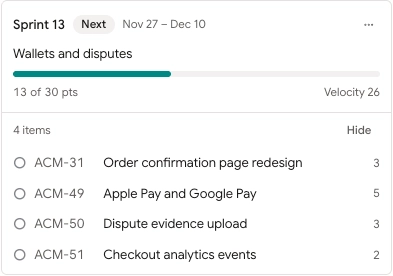
Read the sprint card
Each sprint card shows:
- An Active badge on the running sprint, or Next on the planned sprint that comes up next.
- Its dates and goal, or Add a goal if it has none.
- A capacity bar with points planned against capacity, how many points over it is, and how many items aren’t estimated yet.
- The team’s Velocity, once there’s history to show.
- How many items it holds, with Hide and Show to collapse the list.
Points come from item estimates, so estimate before you plan to get an honest picture. Canceled items don’t count.
Delete a planned sprint
Open the ⋯ menu on a planned sprint and click Delete. Its items go back to the backlog. Active and completed sprints can’t be deleted.